How to Redact and Sanitize a PDF: Limits to Know
Quick answer
PolyPDF redaction removes a marked token when it is ordinary searchable text, but that behavior does not generalize to every PDF structure. Outlined lettering, vector artwork, and images nested inside reusable form content can remain under the black fill, so the black area is never the check: save the file, reopen it, then search and extract the text again. Sanitize Document offers separate choices for metadata, page thumbnails, attachments, and JavaScript actions; saving writes new PolyPDF /Producer and /ModDate entries, and an attachment placed directly on the page can survive. Use an approved specialist workflow whenever confidentiality depends on complete removal.
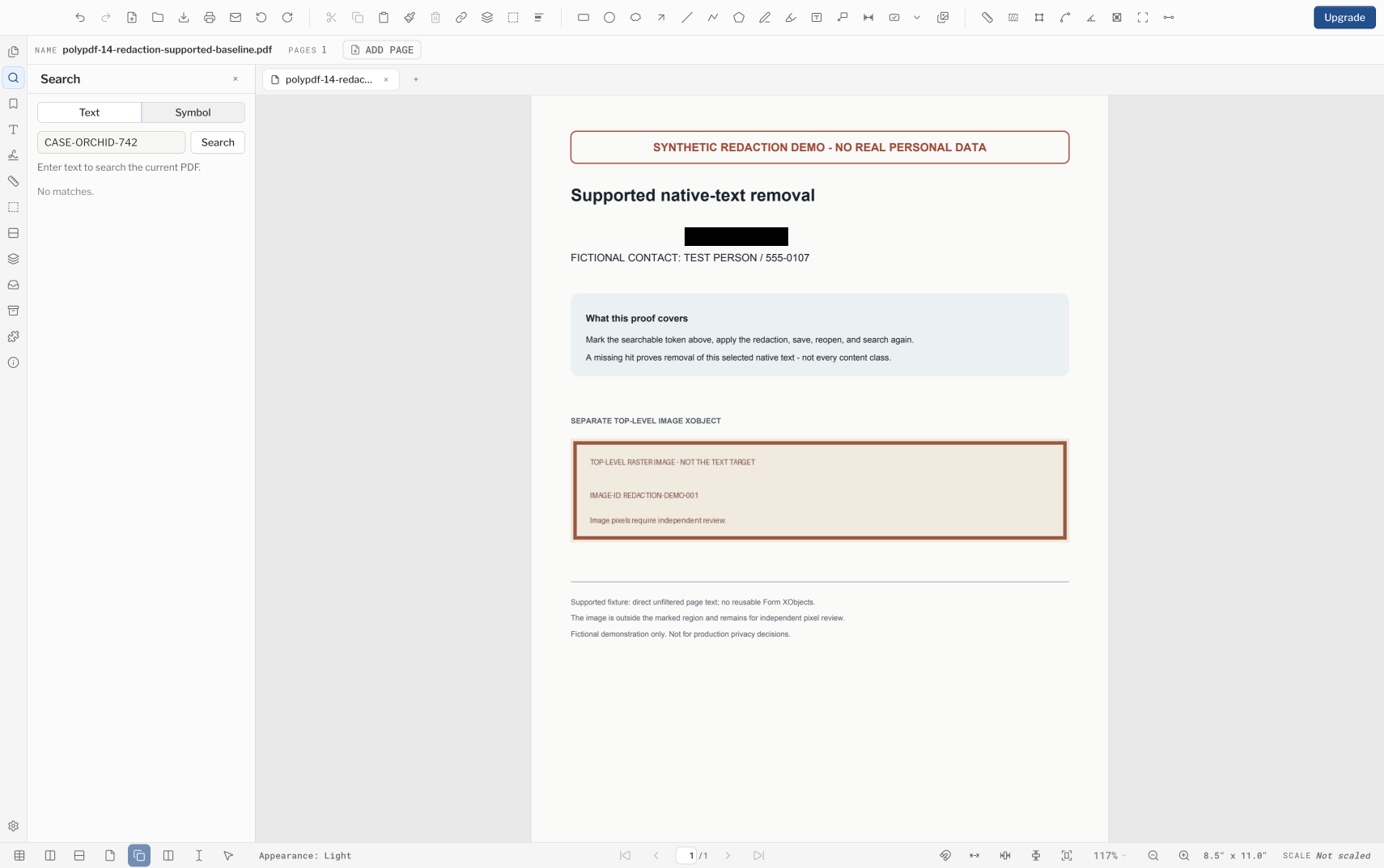
A black rectangle is not redaction, and a finished sanitation pass does not mean every hidden object was found. PolyPDF removes ordinary searchable text under a marked region and clears the structures you select, but confidential release still needs checks that match the content actually inside the PDF.
- Release review
- Aligned with PolyPDF 1.5.1 (build 23) on . Earlier walkthroughs and screenshots retain their versions below.
- Walkthrough verified
- Tested with
- PolyPDF 1.5.0 (build 22); screenshots from 1.4.0 (build 17)
- Platforms
- macOS and Windows
What redaction and Sanitize Document each handle
Redaction and Sanitize Document work on different parts of a PDF, and neither is a universal scrubber. Redaction rewrites the searchable text operators that intersect a marked region. When there is no supported text to remove, PolyPDF still draws the black fill and completes the operation, so vector outlines, text converted to paths, and other graphics can remain in the file underneath it.
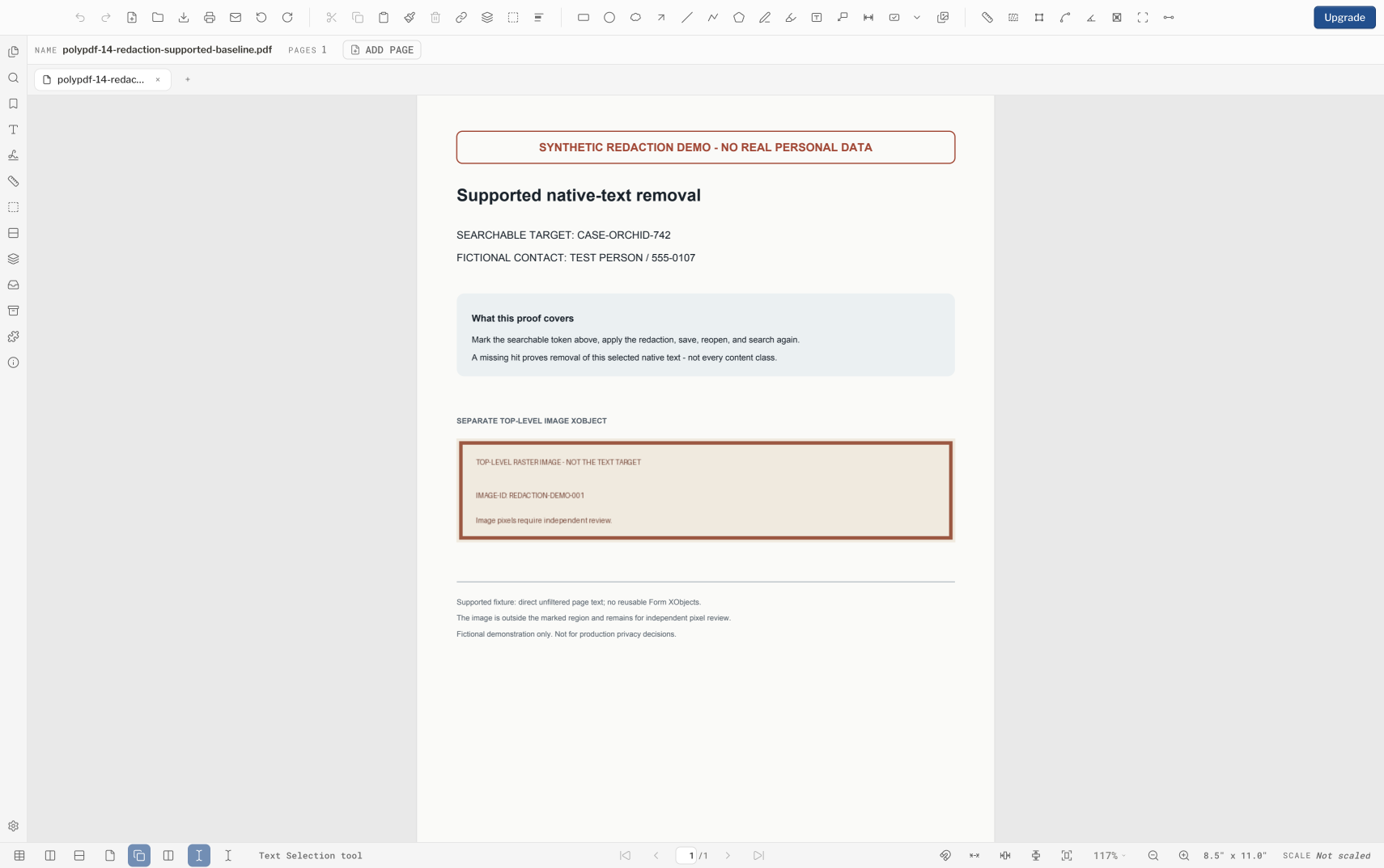
If PolyPDF reports that no text was removed, nothing was redacted — however black the page looks. Stop there and move that material to an approved content-removing workflow.
| Content or structure | What happens | What to do |
|---|---|---|
| Searchable text | Removed when the marked region maps to the text-show operation | Reopen the saved copy, then search and extract to confirm |
| Outlined or vector lettering | Can remain under the black fill while the command completes | Do not treat the black area as removal |
| Raster and nested images | Top-level placements are detected; images nested in form content may not be | Use an image-aware workflow and inspect the output |
| Metadata and catalog structures | Sanitize Document targets the categories you select | Inspect the saved file rather than assuming a full sweep |
| Attachments and actions | An attachment placed directly on the page can survive the pass | Use structural inspection or a specialist sanitation process |
PolyPDF declines pages it cannot rewrite safely — a page that draws its text through a reusable Form XObject, for example. A refusal is not a failure to work around; it means that page needs a different tool.
A conservative workflow for supported searchable text
- Duplicate the source PDF and keep the original where the working process cannot overwrite it.
- Confirm the target is ordinary searchable text by finding and selecting it. If it is a scan, an image, an outline, or a vector path, this workflow will not remove it.
- Choose the Redact tool and draw a tight region around each supported text item. Review repeated names, headers, footers, and similar pages before applying anything.
- Apply the redactions and read the result. A refusal, an error, or a “no text removed” outcome means nothing came out of the file — do not rely on the black appearance.
- Save under a new candidate filename, close it, and reopen that exact saved file.
- Search and extract text from the whole saved file. Try selecting and copying across the former region and inspect it in a second recipient-style viewer.
- For confidential, regulated, privileged, or legally sensitive content, follow the organization’s approved redaction and inspection process even when these checks pass.
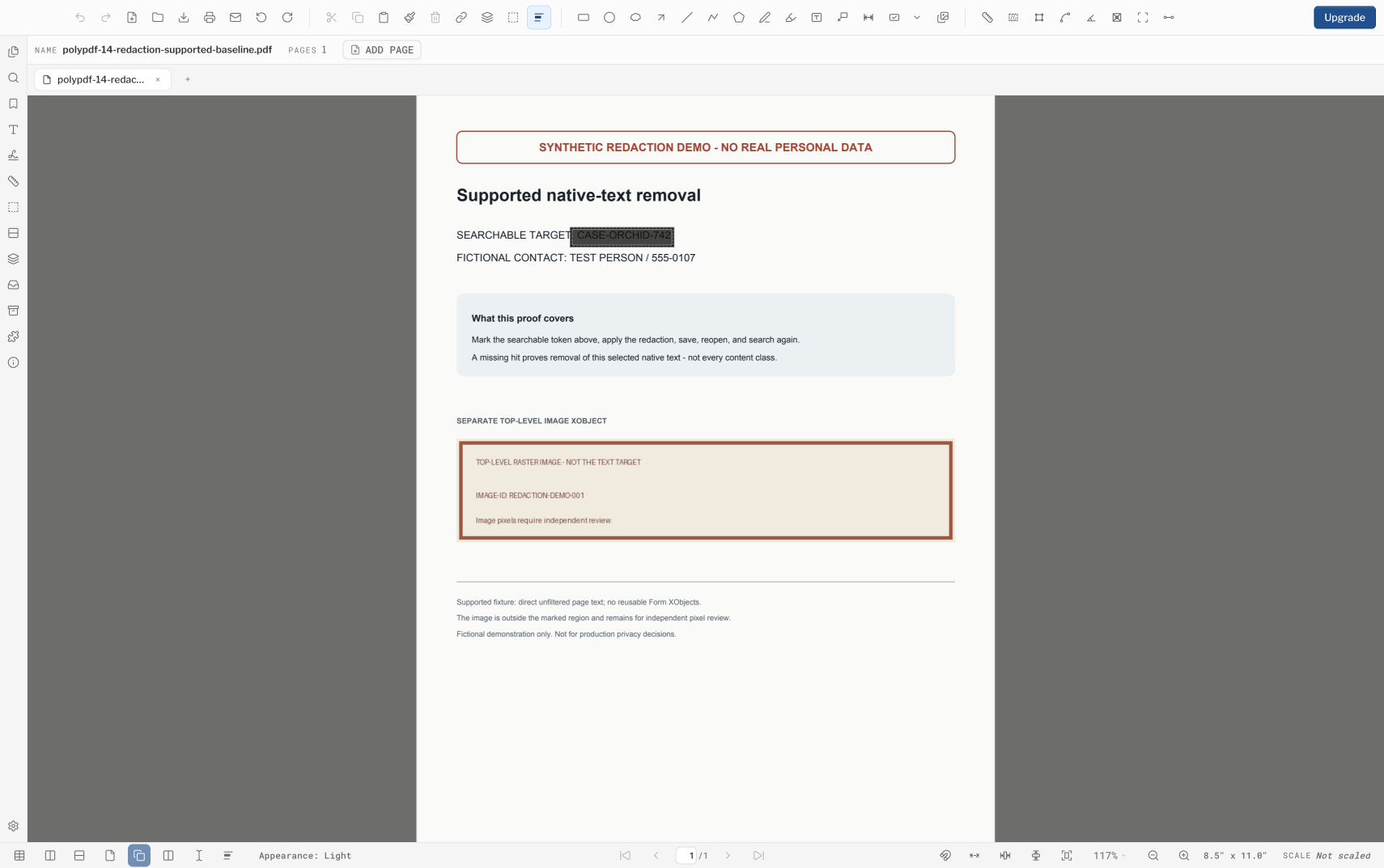
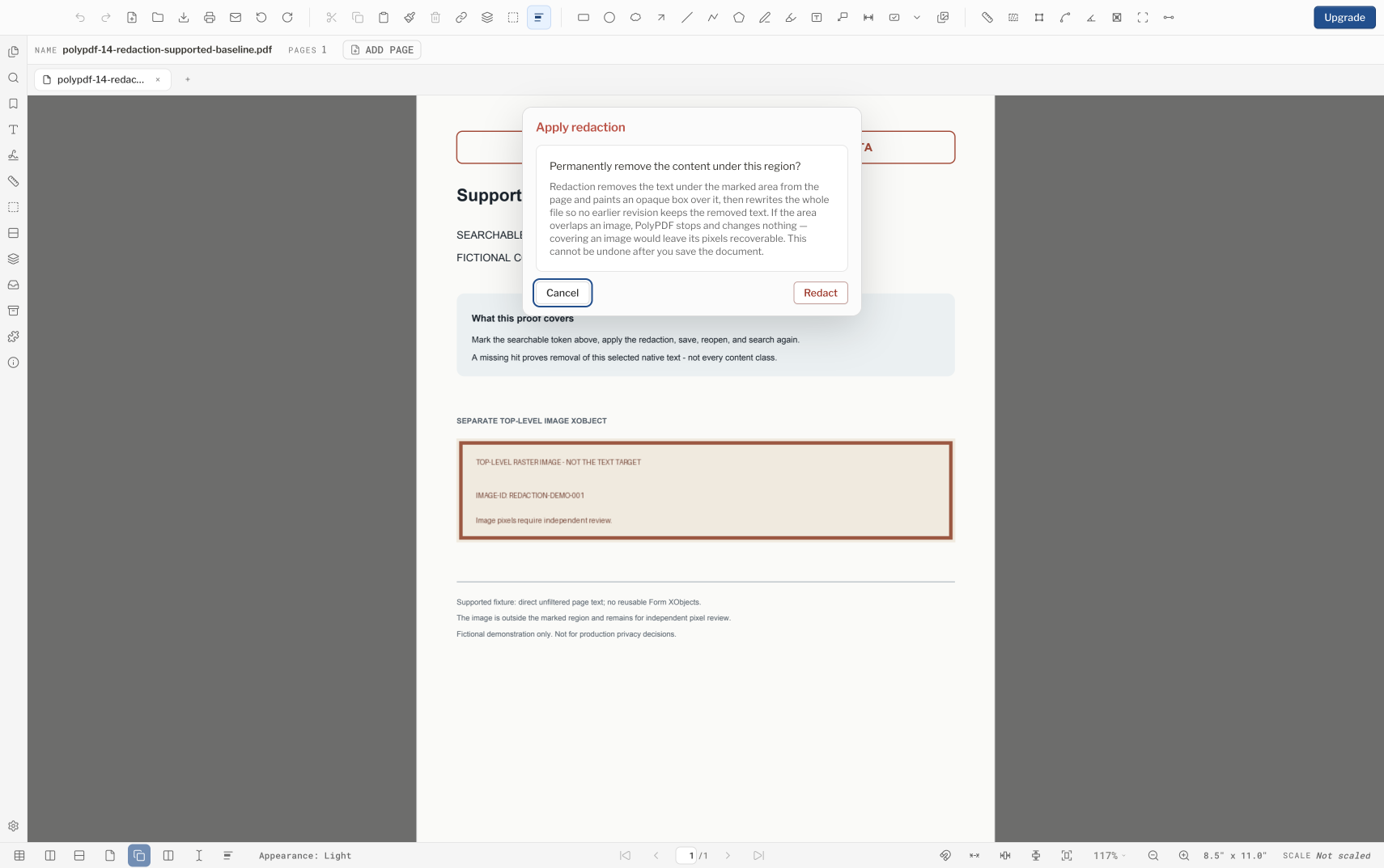
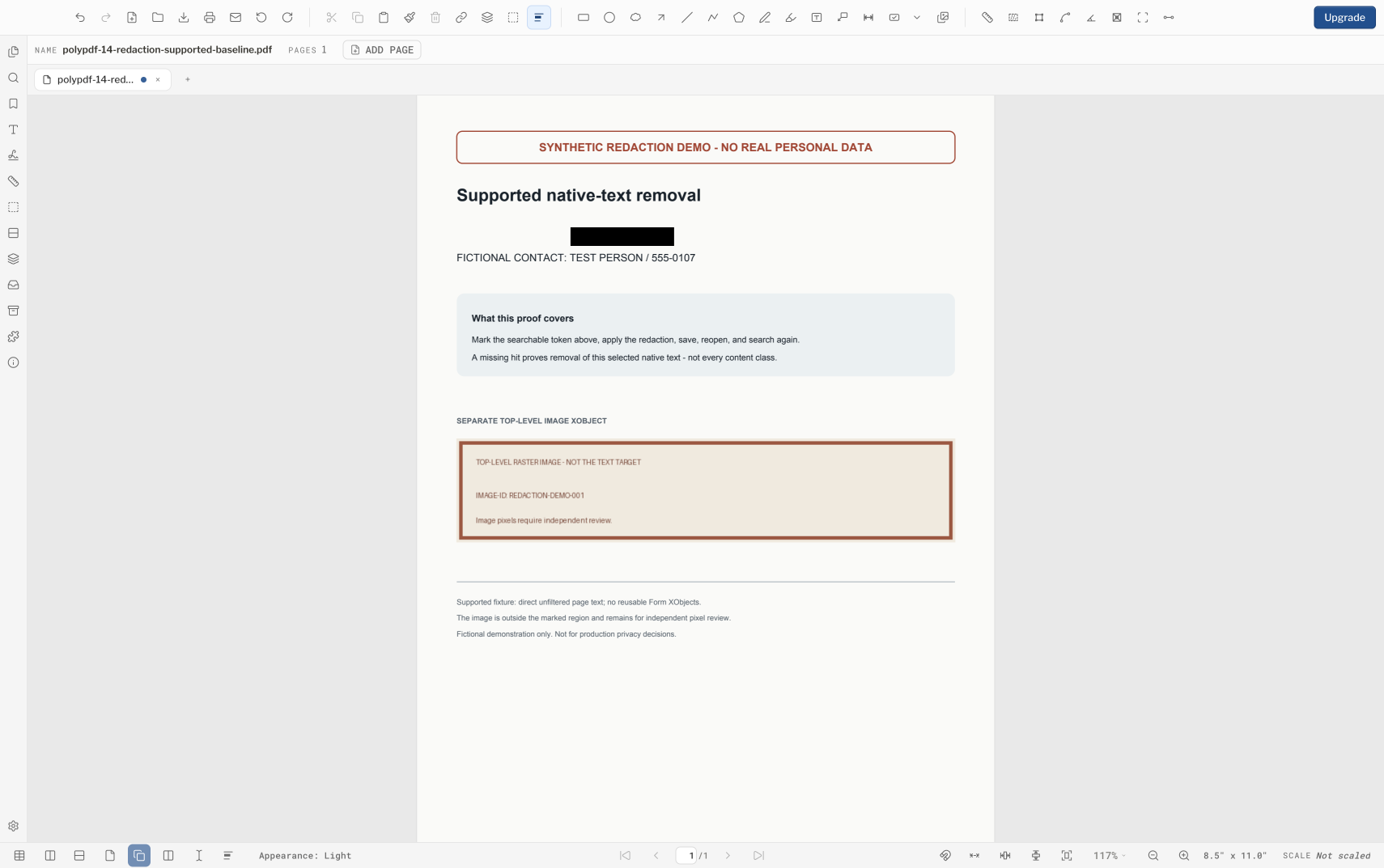
For a token like this one, the saved file comes back empty under all three checks a reviewer can run: in-app Search, text extraction, and a byte search of the uncompressed file. Those checks cover text and nothing else. A single sheet can mix text operators, raster pixels, vector lettering, clipping paths, and reusable form content, and the image on this page was left exactly as it was.
Treat images, outlines, and nested graphics as a separate problem
PolyPDF detects top-level image placements before applying a redaction, but that check does not recurse through every nested Form XObject, so an image embedded inside reusable form content can slip past it. Text converted to outlines is vector artwork rather than a text-show operation, and it can likewise remain beneath the fill.
- Do not infer content type from appearance. Being able to search for a string tells you that it is text; it tells you nothing about the rest of the page.
- Do not flatten, rasterize, print, or cover a page and assume that step alone meets a security or records requirement.
- For a scanned page or image-based identifier, use an approved image-aware redaction tool and verify the resulting pixels and PDF structure.
- For outlined or vector lettering, require a process that removes or replaces the underlying drawing commands rather than adding an opaque shape.
- If you cannot independently inspect the final file, do not release sensitive material based on the PolyPDF result alone.
A second viewer is useful for visual interoperability, but it is not a forensic inspection tool. Confidential release may require text extraction, object inspection, and an approved review record.
Use Sanitize Document as a scoped cleanup pass
Sanitize Document offers separate choices for document metadata and XMP packets, page thumbnails, attachments, JavaScript and actions, and optional form or signature-field removal. Those labels describe what the pass targets; they are not a guarantee that every location in the PDF object graph is visited.
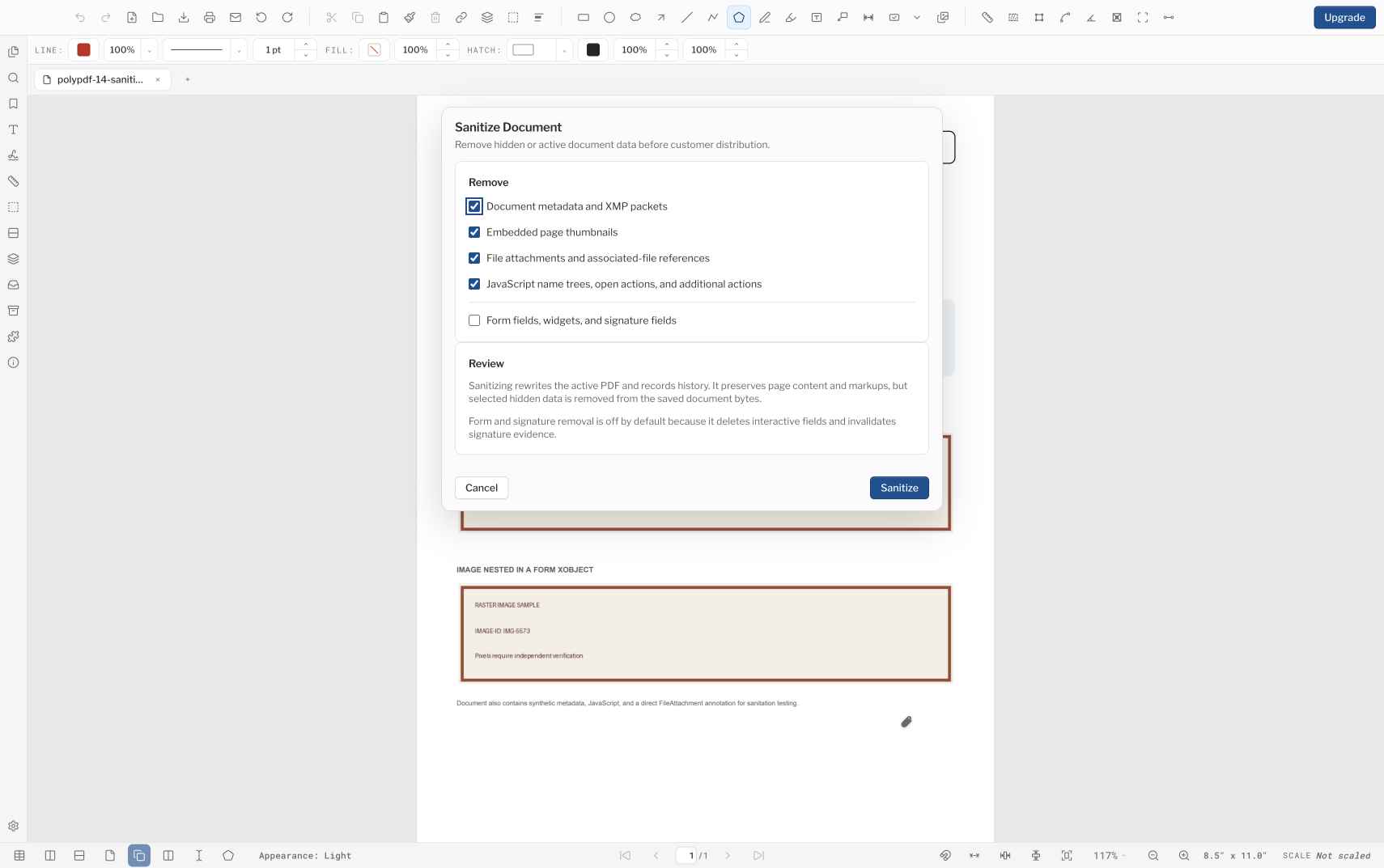
- Existing document metadata is cleared, but saving writes new PolyPDF /Producer and /ModDate entries. The result is never a metadata-free file.
- The catalog JavaScript name tree is removed. Actions reached through annotations, form fields, outlines, or nested chains are not guaranteed to go with it.
- Attachment cleanup is not exhaustive. With attachment cleanup selected, a direct FileAttachment annotation and its embedded payload survived the pass byte for byte.
- Page text and images stay exactly where they are, top-level images and images nested in a Form XObject alike. Sanitize Document is not a redaction step.
- Form and signature-field removal is destructive and off by default. Turn it on only when you intend to lose those fields.
- Keep the untouched source and save each candidate output under a distinct name so a partial cleanup does not replace the record copy.
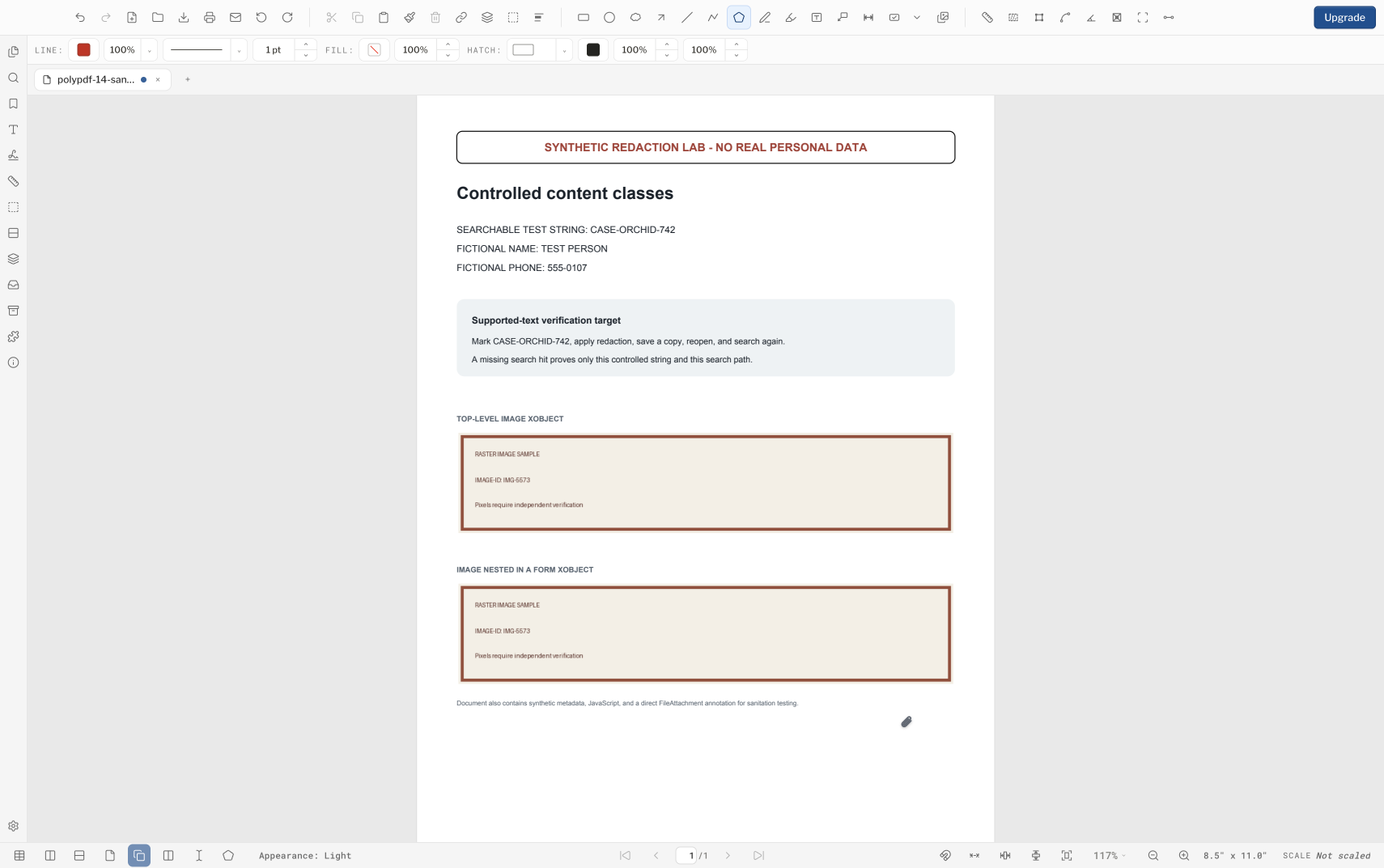
The result message counts what the pass removed, not what remains. Base a release decision on the saved file you inspected, not on the dialog labels or the completion message.
Verify the saved bytes, not the completion message
Close and reopen the exact candidate file so every check is based on saved bytes rather than the in-memory view. A complete review follows the information through more than one surface: rendered pages, searchable text, document properties, embedded-file structures, annotations, form fields, bookmarks, links, and actions.
- Search for the full sensitive values and useful fragments, then run independent text extraction against every page.
- Inspect at high zoom and in a second PDF viewer, including print or export output when recipients use those paths.
- Use an approved structural inspection tool to inventory embedded files and inspect annotation, form, outline, and additional-action entries.
- Confirm page count, bookmarks, links, forms, signatures, layers, and print appearance still match the release requirements.
- Record the input filename or hash, output filename, reviewer, date, tool versions, and checks performed when the process requires an audit trail.
Worked example: rehearse on a file you can throw away
Before you touch a real file, build a throwaway PDF that resembles it: one identifier as ordinary searchable text, a raster image, and — if the real drawing has them — text drawn through a reusable Form XObject. Redact the identifier and watch which parts PolyPDF handles and which it declines. A page whose text comes from a Form XObject is declined outright rather than half-redacted, which is the behavior you want to see before a deadline rather than during one.
Apply the region, save under a new name, close the file, and reopen that exact file. Search for the identifier, extract the text of every page, and confirm the count comes back zero. Where it does not — or where the sensitive content was an image, an outline, or a vector path — that content needs a different tool.
Rehearse sanitation the same way. Start from a copy that carries document metadata, a JavaScript entry, an attachment, and images; run Sanitize Document; then inspect the saved file. Expect the JavaScript entry and the original metadata to be gone, fresh Producer and ModDate metadata written on save, and the attachment and both images still present.
A rehearsal tells you how PolyPDF behaves on your kind of drawing. It is not a reason to make PolyPDF the only redaction or sanitation control for sensitive documents.
Frequently asked questions
Does drawing a black box permanently redact a PDF?
No. An opaque appearance can leave searchable text, vector paths, outlined lettering, or image pixels in the file. Confirm that supported text was actually removed and use a content-appropriate inspection process.
Can PolyPDF redact text inside a scanned page image?
No. PolyPDF detects some top-level image overlaps, but images nested inside form content can slip past that check, and redaction does not remove pixels. Use an approved image-aware workflow for scanned pages.
Does Sanitize Document remove every attachment and script?
No. The catalog JavaScript name tree is removed, but an attachment placed directly on the page can survive with its payload unchanged, and actions reached through annotations, form fields, outlines, or nested structures are not guaranteed to go with it. Inspect the saved PDF structurally.
Should I redact a digitally signed PDF?
Changing page content can invalidate a signature or be blocked by the file. Obtain an authorized unsigned source, complete the approved removal workflow, verify the new issue, and sign only after content changes are finished.
Sources and further reading
- NIST SP 800-122: Guide to Protecting the Confidentiality of Personally Identifiable Information
- PolyPDF 1.5.0 redaction and sanitation behavior — Redaction removes ordinary searchable text under a marked region; pages that draw text through a Form XObject are declined rather than partly redacted. Sanitize Document clears the categories you select and does not traverse every structure in the file.
Rehearse on a file you can throw away
Download PolyPDF for macOS or Windows and run text redaction and Sanitize Document on a disposable copy first. Do not make it your only release control when confidentiality depends on complete removal.
Free with no trial timer: markup, review, calibration, 3 hand-created measurements per document, and Revision Package viewing. Symbol Search, plugins, and Revision Package changes or publishing require Pro.