How to OCR Scanned PDF Drawings
Quick answer
To OCR a scanned PDF drawing in PolyPDF 1.5, save a working copy, choose Document › OCR, and let the whole-document recognition run finish. PolyPDF uses local OCR, adds a best-effort searchable layer where supported, and analyzes AEC structure such as schedules, title blocks, drawing labels, and dimensions. Export recognized tables from File › Export › Excel Workbook (Tables + Text)… while that OCR session is still open. Reopen the saved PDF, search representative terms, and visually verify every critical value.
OCR can turn a flat scan into a document you can search, but it does not turn uncertain pixels into authoritative text. The useful workflow is recognition, targeted testing, and manual verification of anything consequential.
- Release review
- Aligned with PolyPDF 1.5.1 (build 23) on . Earlier walkthroughs and screenshots retain their versions below.
- Walkthrough verified
- Tested with
- PolyPDF 1.5.0 (build 22); screenshots from 1.4.0 (build 17)
- Platforms
- macOS and Windows
Work with the construction drawing set
Test OCR on the Willow Creek scanned sheets
A101 · C101
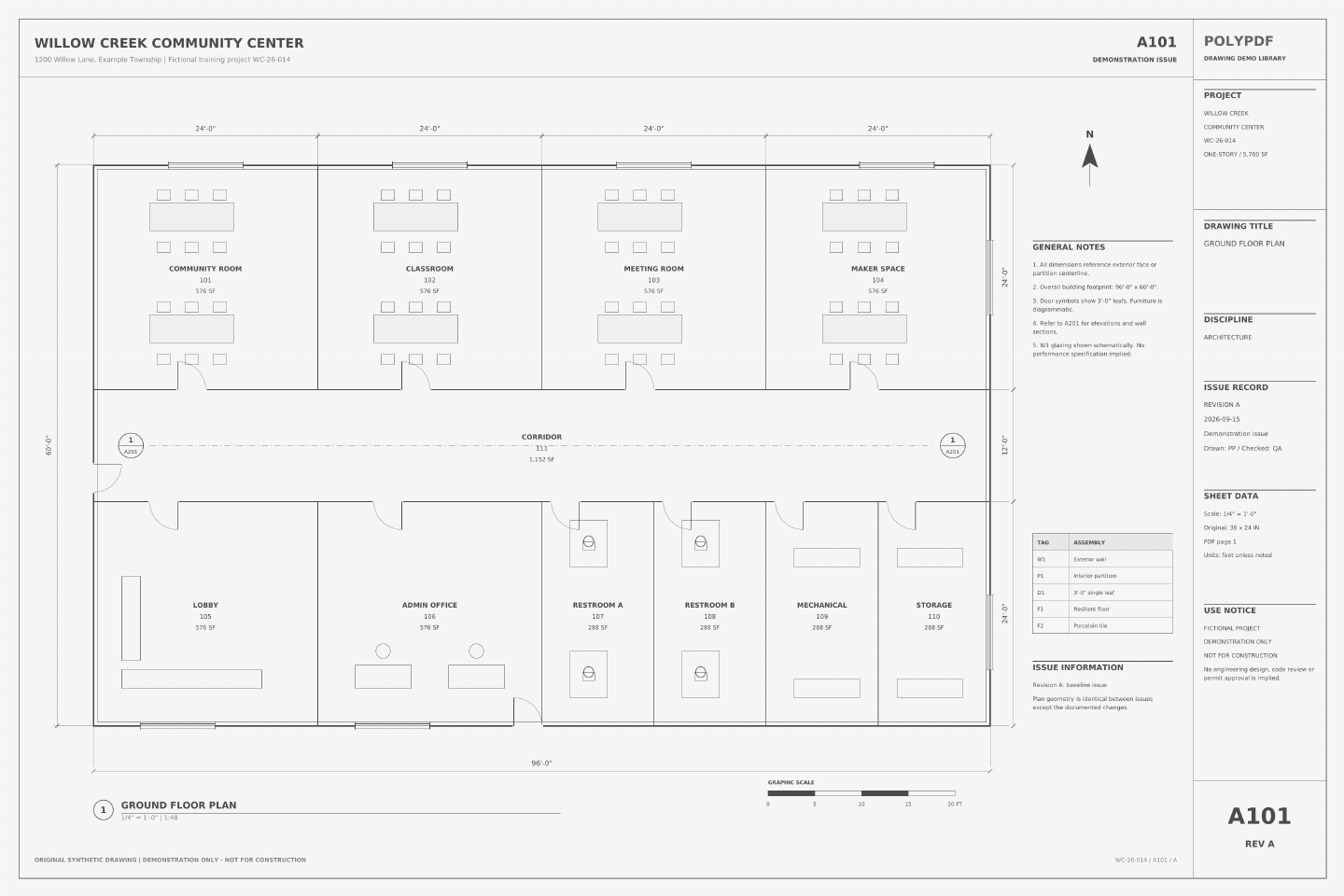
- Open the scanned set and try searching for WILLOW CREEK. The original two-page PDF contains images without native text.
- Run OCR on a working copy. Search for COMMUNITY ROOM on A101 and SITE PLAN on C101, then inspect the recognized text.
- Save and reopen the result. Repeat the searches and visually check dimensions before measuring the scanned drawing.
Search targets are printed source text, not a promise of recognition accuracy. OCR does not repair drawing scale or scan distortion.
Drawing reference values, not new app test results. Work on a copy and check your own saved output.
 Download the example drawing · PDF
The exercise above uses the Willow Creek library. Earlier walkthrough screenshots and saved examples below retain their original drawings, versions, and quantities.
First confirm that the PDF actually needs OCR
Open the PDF and try to select a word with the text-selection tool. Then search for an obvious sheet title or note. If you can select individual characters and search already finds them, the page has a text layer; OCR may add duplicate or noisy text rather than help. If selection treats the page as one image and search returns nothing, it is a good OCR candidate.
| Observed page behavior | Likely source | Next step |
|---|---|---|
| Words select and search correctly | Born-digital PDF with text | Use the existing layer; OCR is usually unnecessary |
| The entire page behaves like an image | Scan or raster export | Run OCR on a copy |
| Some notes select but others do not | Mixed vector text and images | Test carefully; OCR value may vary by page |
| Text is selectable but incorrect | Existing low-quality OCR layer | Keep the source and compare results before replacing any workflow |
OCR changes text discoverability, not the drawing geometry. It does not calibrate the sheet, validate dimensions, or confirm that a note was recognized correctly.
Run OCR in PolyPDF
- Duplicate the source PDF or use Save As so the original scan remains untouched.
- Close unrelated large documents if the scan is long or image-heavy, then open the working copy.
- Choose Document › OCR. OCR starts for the current document; the current dialog does not offer a page-range or language picker.
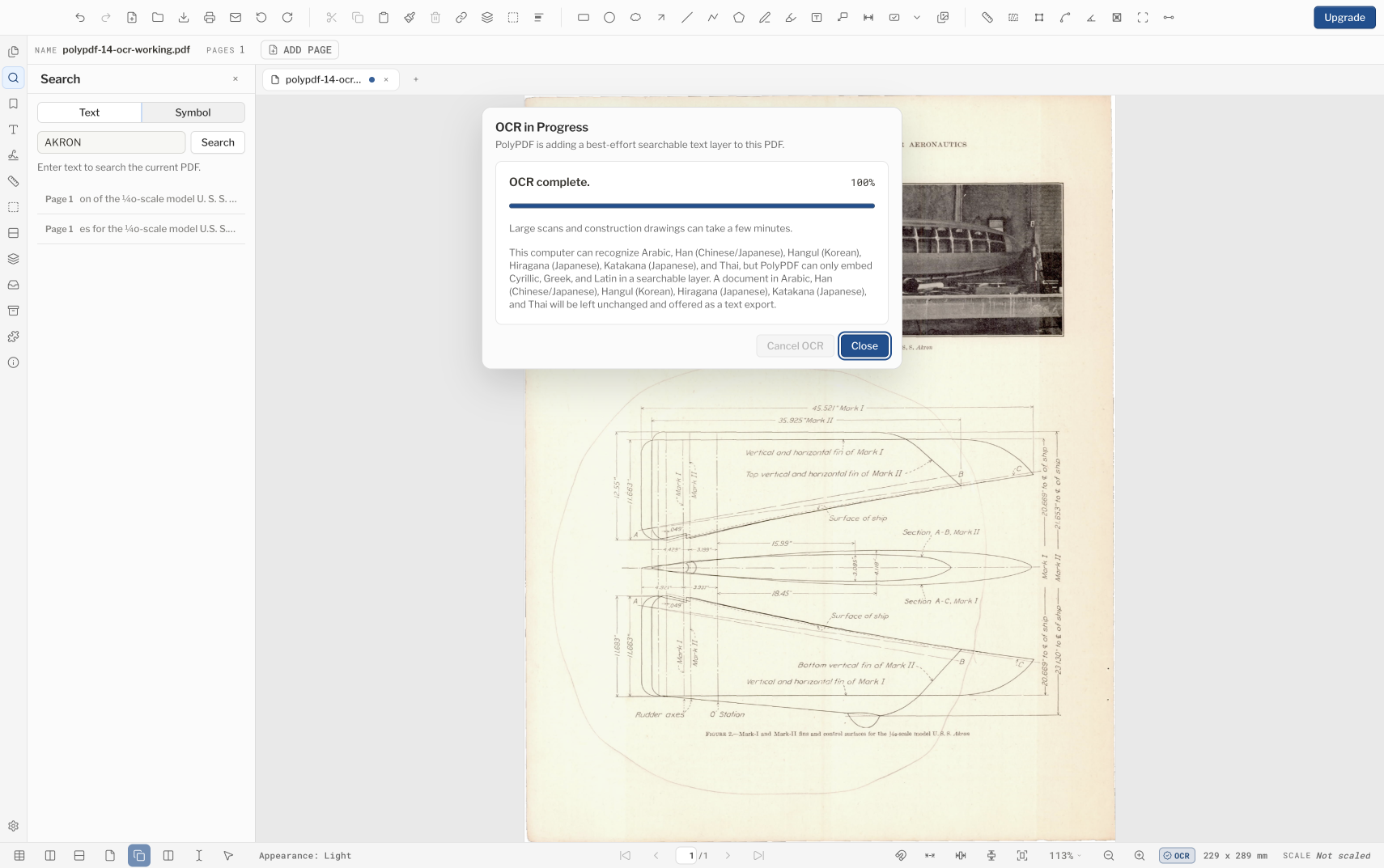
- Keep the dialog open to watch progress, or close it if you want the run to continue in the background. Choose Cancel OCR when you need to stop; a cancelled run discards its result.
- Wait for the completion message before judging search. Large scans and construction sets can take time.
- Save the recognized document under a distinct filename, close it, and reopen that saved file.
- Search several terms from different pages and copy short passages into plain text to inspect recognition quality.
Review AEC structure and export tables before closing the session
Since PolyPDF 1.4.4, OCR also builds a current-session model of likely schedules, title-block fields, drawing and detail labels, dimensions, regions, rows, and cells. This is useful for review and spreadsheet handoff, but it is still inferred from page pixels and selectable text—not an authoritative schedule database.
| Result | Where it lives | What to do |
|---|---|---|
| Searchable text layer | Saved into the PDF where supported | Save, close, reopen, and search representative terms |
| Recognized AEC tables and fields | Current open-document OCR session | Review the rows and cells, then export before closing or structurally reloading the document |
| Excel workbook | A separate .xlsx file you choose | Open it in a spreadsheet app and compare consequential cells with the drawing |
- Finish the OCR run and inspect the recognized table names, headings, rows, and dimensions.
- Choose File › Export › Excel Workbook (Tables + Text)… while the recognized document session remains open.
- Save the workbook under a name tied to the source drawing and issue.
- Open the workbook and compare critical quantities, dimensions, tags, and schedule cells with the visible PDF.
- Treat merged cells, faint rules, handwriting, rotated labels, and dense linework as high-risk review areas.
The structured table model is session data. Saving and reopening preserves the searchable PDF layer, but you should not assume the inferred table model will still be available unless you run OCR again. Export the workbook before closing the session.
Understand the language and script boundary
Recognition availability comes from the operating system and its installed language support, so the languages offered by one Mac or Windows computer may differ from another. PolyPDF’s current embedded searchable layer is limited to Latin, Greek, and Cyrillic scripts. The operating system may recognize text in additional scripts, but PolyPDF does not promise to embed those characters as a searchable layer in the PDF.
- Treat mixed-script title blocks as a special review case.
- Install and enable the needed OS language support before the project starts, then test with a representative page.
- Do not infer that a displayed language name guarantees equal accuracy across fonts, scan quality, rotations, or handwritten notes.
- When PolyPDF reports that recognized text cannot be embedded, use any offered text export as a review aid, not as proof that the PDF itself is searchable in that script.
Verify the terms that matter to the job
A general search test can pass while the identifiers you need still fail. Build a small verification set from the document: a sheet number, a room name, a material abbreviation, a dimension, and a note containing punctuation. Search each value exactly, then try a distinctive fragment. Inspect both true hits and obvious locations the search missed.
- Expect confusion between similar shapes such as O and 0, I and 1, S and 5, or decimal points and scan noise.
- Rotated notes, condensed fonts, faded diazo prints, skewed scans, and text crossing linework are harder inputs.
- Never copy an OCR-derived dimension, quantity, equipment tag, or specification value into downstream work without comparing it to the page image.
- Search results are a navigation aid. The visible drawing remains the source that must be reviewed.
Worked use case: find “Surface of ship” on a scanned engineering drawing
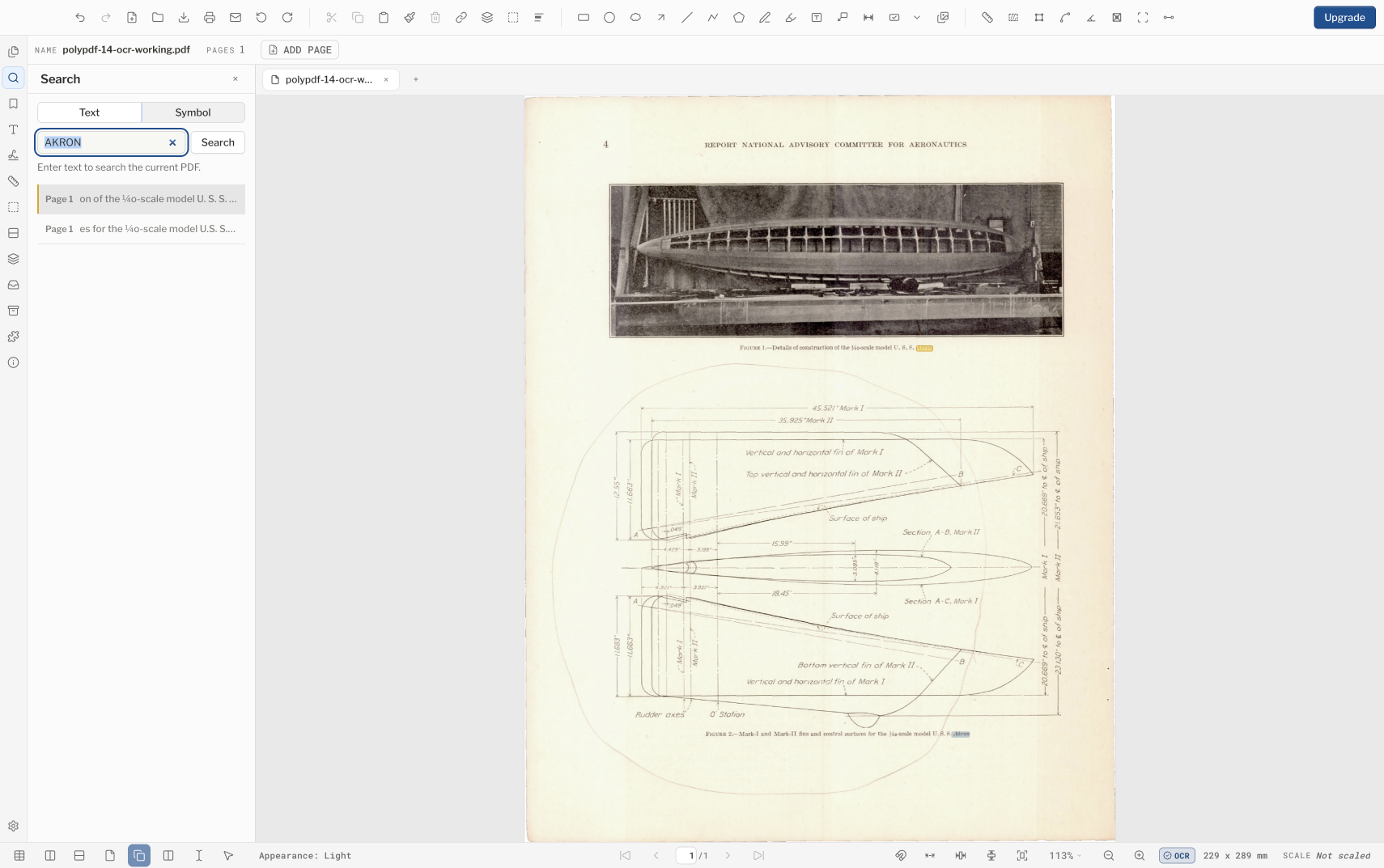
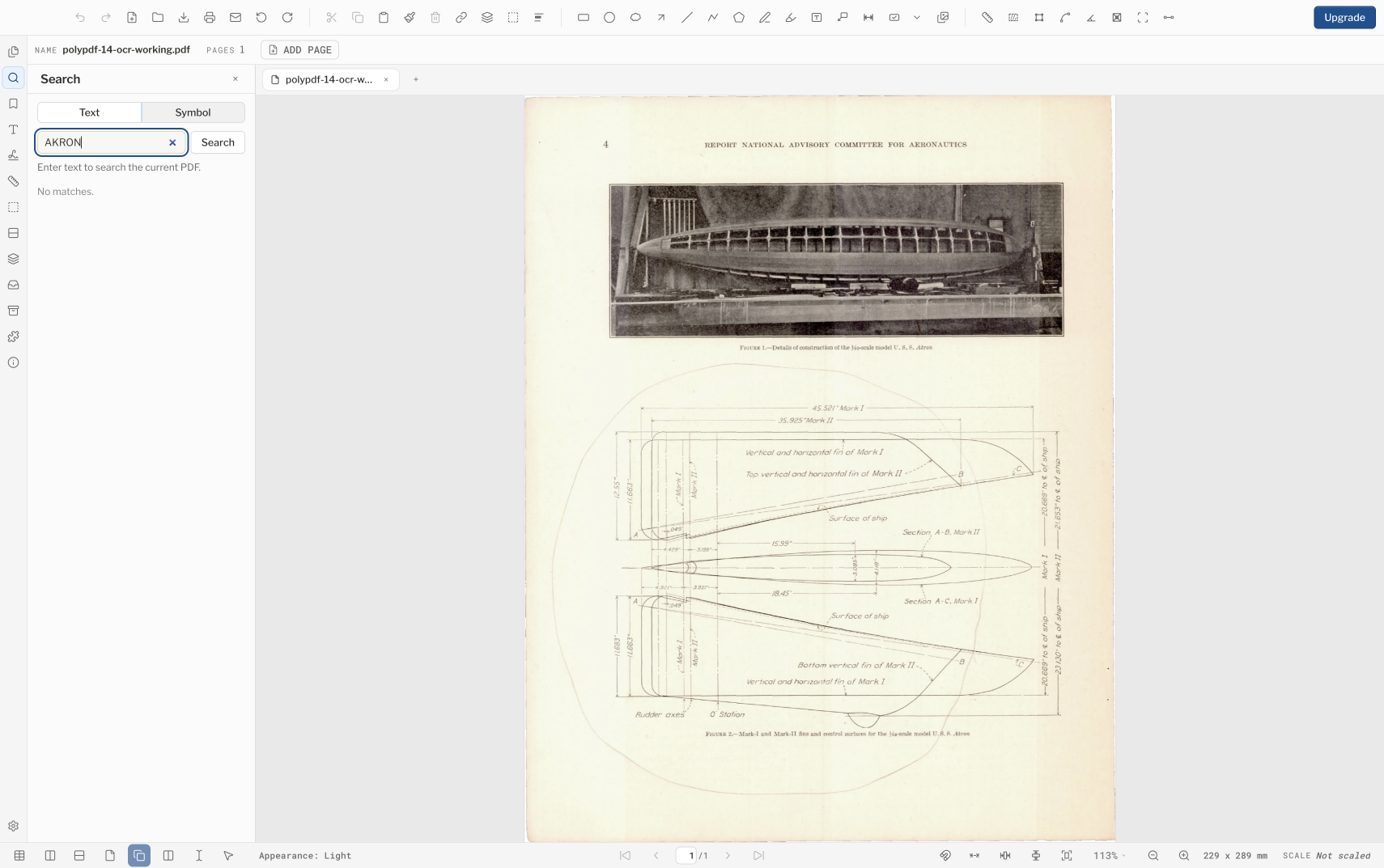
The NACA page shown here is a raster scan with no extractable text before OCR: searching SURFACE returns “No matches.” After the whole-document run finished, we saved the result, quit PolyPDF, reopened the saved PDF, and repeated the same search. PolyPDF returned three results and selected one “Surface of ship” occurrence on the drawing.
Copying text out of the saved PDF returns “REPORT NATIONAL ADVISORY COMMITTEE FOR AERONAUTICS,” “Surface of ship,” and “U.S. S. Akron.” The same text also contains errors in small italic labels and dimension notation, so use OCR hits for navigation and compare every consequential identifier, note, or measurement with the visible scan.
What OCR does not establish
- OCR is best-effort recognition, not a transcription warranty or drawing-validation service.
- A searchable text layer does not make the PDF accessible. Reading order, headings, alternative text, form labels, and other accessibility structure require separate review.
- OCR does not remove confidential pixels. If a scan must be redacted, use an image-aware redaction workflow and verify the output.
- Recognition runs locally through platform capabilities, but OS language availability and results can differ between computers.
- A completed progress bar means the run finished. It does not mean that every word was found or embedded correctly.
For consequential work, define the acceptable use before running OCR: navigation and discovery are reasonable; unreviewed extraction of dimensions, quantities, or compliance language is not.
Frequently asked questions
Does PolyPDF OCR run in the cloud?
PolyPDF uses local operating-system OCR rather than a PolyPDF cloud recognition service. Available languages can still depend on the OS and installed language packs.
Which scripts can PolyPDF embed as searchable PDF text?
In the current release, the embedded searchable layer is limited to Latin, Greek, and Cyrillic scripts. Platform recognition may cover more scripts, but that does not mean PolyPDF can embed all of them in the PDF.
Can I choose a page range or OCR language?
Not in the current OCR dialog. It starts a whole-document run and relies on platform recognition capabilities rather than exposing page-range and language controls.
Can PolyPDF export an OCR schedule to Excel?
Yes. After OCR builds its current-session AEC structure, choose File › Export › Excel Workbook (Tables + Text)…. Review the resulting rows and cells against the drawing; OCR and table reconstruction are best effort.
Does OCR make a scanned PDF accessible?
No. Searchable text is one ingredient, but accessibility also depends on reading order, document structure, alternative text, form labeling, and human review.
Sources and further reading
- NASA NTRS: NACA U.S.S. Akron engineering scan — The NASA record marks the report Public and states that it is a work of the U.S. government with public use permitted.
- Apple Vision: Recognizing text in images
- Microsoft Learn: Windows.Media.Ocr namespace
- PolyPDF 1.5: local AEC OCR and table export — AEC structure and Excel export were introduced in 1.4.4. The embedded searchable layer covers Latin, Greek, and Cyrillic scripts, and language availability depends on the computer’s operating system and installed support.
Test OCR on a representative scan
Download PolyPDF for macOS or Windows, run OCR on a non-sensitive copy, and test the exact sheet labels and notes your workflow needs to find.
Free with no trial timer: markup, review, calibration, 3 hand-created measurements per document, and Revision Package viewing. Symbol Search, plugins, and Revision Package changes or publishing require Pro.