Compare the workflow before you switch
A Bluebeam alternative for drawing work on Mac and Windows.
Evaluate PolyPDF for local PDF takeoff, markup, and drawing review. Start with a representative file and check the outputs your team needs.
PolyPDF does not join Bluebeam Studio. This comparison is published by PolyPDF and focuses on the workflows described below.
Free with no trial timer: markup, review, calibration, 3 hand-created measurements per document, and Revision Package viewing. Symbol Search, plugins, and Revision Package changes or publishing require Pro.
Quick answer
Can PolyPDF replace Bluebeam for construction PDF work?
PolyPDF is an option for local PDF measurement, takeoff, markup, and drawing review on Mac and Windows. Its personal Pro license is a one-time purchase for PolyPDF 1.x on up to 3 computers. It cannot join Bluebeam Studio. Test required annotations, exports, and recipient workflows on a representative drawing before switching; a project that requires Studio still needs a supported Bluebeam solution.
Review the detailed Mac comparison →01 / WHY
Choose around the deliverable your project requires.
A tool can fit individual measurement and markup work without replacing an established collaboration system. Check licensing, exports, platform requirements, and recipient compatibility separately.
Reviewed October 16, 2026
Compare the work, the handoff, and the license.
| Decision | PolyPDF | Bluebeam |
|---|---|---|
| Desktop platform | Desktop apps for Mac and Windows. One personal license covers up to 3 computers in any mix. | Revu is a Windows desktop application. Bluebeam documents separate web, supported iOS-on-Mac, and virtualization options for Mac users. |
| Takeoff and quantities | Calibrated measurements, counts, and takeoff worksheets. Review quantities before exporting. | Evaluate Revu’s measurement and estimation features against your project’s established workflow and subscription tier. |
| PDF markup and handoff | Local notes, shapes, callouts, and review markups. Test a representative saved file in the recipient’s viewer. | Evaluate required Revu-specific annotations, custom columns, toolsets, and recipient workflows before changing tools. |
| Exports | CSV and PDF worksheet outputs for downstream review and pricing. | Check the required Revu reporting and export workflow against the selected plan. |
| Collaboration | PolyPDF has its own collaboration workflow. It cannot join Bluebeam Studio. | Keep a supported Bluebeam solution when Studio Projects or Sessions are a project requirement. |
| Personal licensing | Free evaluation with 3 hand-created measurements per document; Pro removes the cap and adds Pro workflows. One-time 1.x license; future major upgrades may be paid. | Consult the current Bluebeam subscription plans and their included features. |
Sources: Bluebeam Mac guidance, Bluebeam takeoff workflow, Bluebeam plans, and PolyPDF licensing.
When staying with Bluebeam makes sense
Keep the required tool when your project depends on Studio, a Revu-specific deliverable, or an established workflow you have not reproduced in another application. Test file handoff with the actual recipient before switching.
See the detailed Mac comparison →Bluebeam migration checklist
What should you test before switching from Bluebeam?
Test a representative project from calibration through the recipient’s final review. Compare known dimensions, units, quantities, editable markups and exported totals. Record the app versions and any differences. A PDF that looks correct can still lose editable data or a required workflow. PolyPDF cannot join Bluebeam Studio; keep a supported Bluebeam solution when Studio is required.
Download the blank handoff checklist · CSVOpen in Excel, Numbers or another spreadsheet. No account needed. This is a test worksheet for your project, not a completed compatibility test.
Keep an untouched source and define the handoff
Work on a copy. Record the sheet, revision, source app, destination app and operating-system versions. Agree which outputs the recipient needs before testing.
Record: Source filename and revision; app versions; reviewer; required deliverables.
Verify scale in two directions
Calibrate a known dimension, then check a different labeled span in the other direction. Repeat for pages or details with different scales. Agree the acceptable tolerance for this project.
Record: Reference lengths, measured lengths, units and agreed tolerance; any scan distortion.
Reconcile measurements and worksheet totals
Compare representative lengths, net areas, exclusions and counts with the source record. Check subjects, units, rounding and page references. Do not assume that custom columns, formulas or toolsets transfer.
Record: Expected and actual quantities; missing fields; any values or workflows rebuilt manually.
Check editable markups after reopening
Save a separate PDF, close it and reopen it. Inspect notes, callouts, measurement labels and any required properties in the recipient’s actual viewer. Check whether items remain editable when editing is required.
Record: Viewer and version; appearance, text and editability; any flattened or missing information.
Compare the CSV and PDF handoff
Export the reviewed worksheet and open it in the intended spreadsheet or PDF viewer. Reconcile subjects, units, counts and totals against the saved drawing. Confirm that downstream pricing uses the intended units.
Record: Export filenames; worksheet totals; downstream units; reviewer’s discrepancies.
Test document controls and project requirements
Check forms, signatures, permissions, links and revision procedures that the project actually needs. Test a typical large drawing set on the intended computer. Treat Studio access as a separate requirement.
Record: Required features tested; file size and page count; observed behavior; Studio dependency.
Get the recipient’s acceptance before changing tools
Have the actual recipient review the saved PDF and exports. Resolve every failed required check, or retain the existing tool for that part of the workflow. Keep both the original record and the test evidence.
Record: Pass, Fail or Not applicable with a reason for each check; acceptance, reviewer and date.
Free includes up to 3 hand-created measurements per document. Start with a length, an area and a count; a fuller pilot or Pro-only features require the appropriate license. Check the Free and Pro limits.
From drawing to quantity
Try a complete, reviewable example.
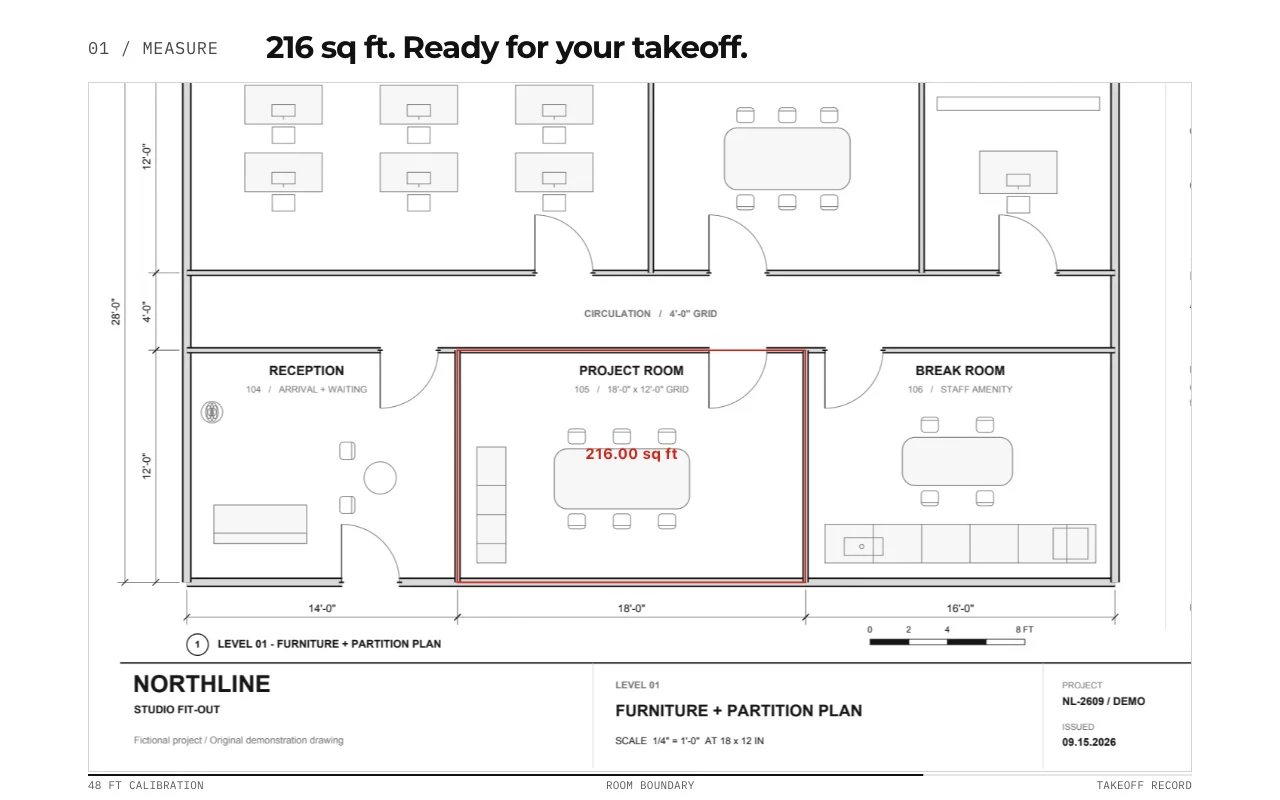
Start with a drawing, verify its scale, inspect the quantities, and save a separate review copy. Keep the source revision and units with every exported result.
The Northline review sample was saved and reopened in PolyPDF 1.6.6 build 38 on Mac. It verifies one rectangle and one text note, not every PDF annotation or recipient application.
Follow the takeoff walkthrough →Drawing and handoff files
Free downloads. No account or email required. Synthetic drawings are for practice, not construction.
02 / WORKFLOW
From source PDF to a result you can review.
- 01
Open a representative drawing
Use a working copy of your PDF or the provided sample drawing. Keep the original unchanged.
- 02
Calibrate and check the result
Set the page scale, then verify a different known dimension. Free includes calibration and up to 3 hand-created measurements per document.
- 03
Review quantities and markups
Try a length, an area, and a review note. Inspect the worksheet before exporting. Symbol Search, colored overlays, and toolset placement require Pro.
- 04
Check the handoff
Save a separate PDF, close and reopen it, and check the result in your recipient’s required viewer. Test editable markups, comments, measurement values, and any signature or form requirements separately.
03 / FIT
A good fit for local drawing work.
- Calibrated distance, area, perimeter, angle, radius, diameter, dimension, and count workflows.
- PDF callouts, notes, highlights, shapes, review stamps, and revision clouds.
- Takeoff worksheet exports to CSV and PDF for estimating and review.
- Core PDF work runs locally. Licensing, updates, and optional connected features use the internet.
- One personal Pro license covers PolyPDF 1.x on up to 3 Mac or Windows computers; public 1.x updates are included.
Start with the free app. Pay once to unlock every Pro workflow.
Use PolyPDF 1.x forever on up to 3 Mac or Windows computers. Every PolyPDF 1.x update is included. Future major versions may be optional paid upgrades.
14-day money-back guarantee. Try PolyPDF on your own drawings, risk-free.
04 / FAQ
Questions before you test it.
Can I use Bluebeam on a Mac today?
Yes. Bluebeam documents browser access, its iOS app on supported Apple Silicon Macs, and Revu for Windows through virtualization. Compare those options with the workflow you need; the retired Revu for Mac desktop app is a separate product.
Does PolyPDF replace Bluebeam Studio?
PolyPDF does not join Bluebeam Studio Sessions or Projects. PolyPDF company collaboration uses a separately configured company host and its own access setup. If your project requires Studio, keep a supported Bluebeam route for that work.
Can I try PolyPDF before paying?
Yes. Free includes PDF markup, review, scale calibration, up to 3 hand-created measurements per document, and Revision Package viewing, with no trial timer. Symbol Search, colored overlays, PDF content editing, toolset placement, plugins, and Revision Package changes require Pro.
Will every Bluebeam PDF feature work the same way?
Compatibility depends on the file and feature. A PDF that looks correct does not prove that custom columns, calculations, toolsets, forms, signatures, or collaboration will behave identically. Test a saved copy with the recipient’s viewer before changing your project workflow.
What does the personal Pro license include?
PolyPDF Pro is a one-time purchase for perpetual use of PolyPDF 1.x on up to 3 Mac or Windows computers. Public 1.x updates are included; future major versions may be optional paid upgrades. Teams licensing and company-hosted collaboration have separate setup and terms.