Digital vs Visual PDF Signatures vs Professional Seals
Quick answer
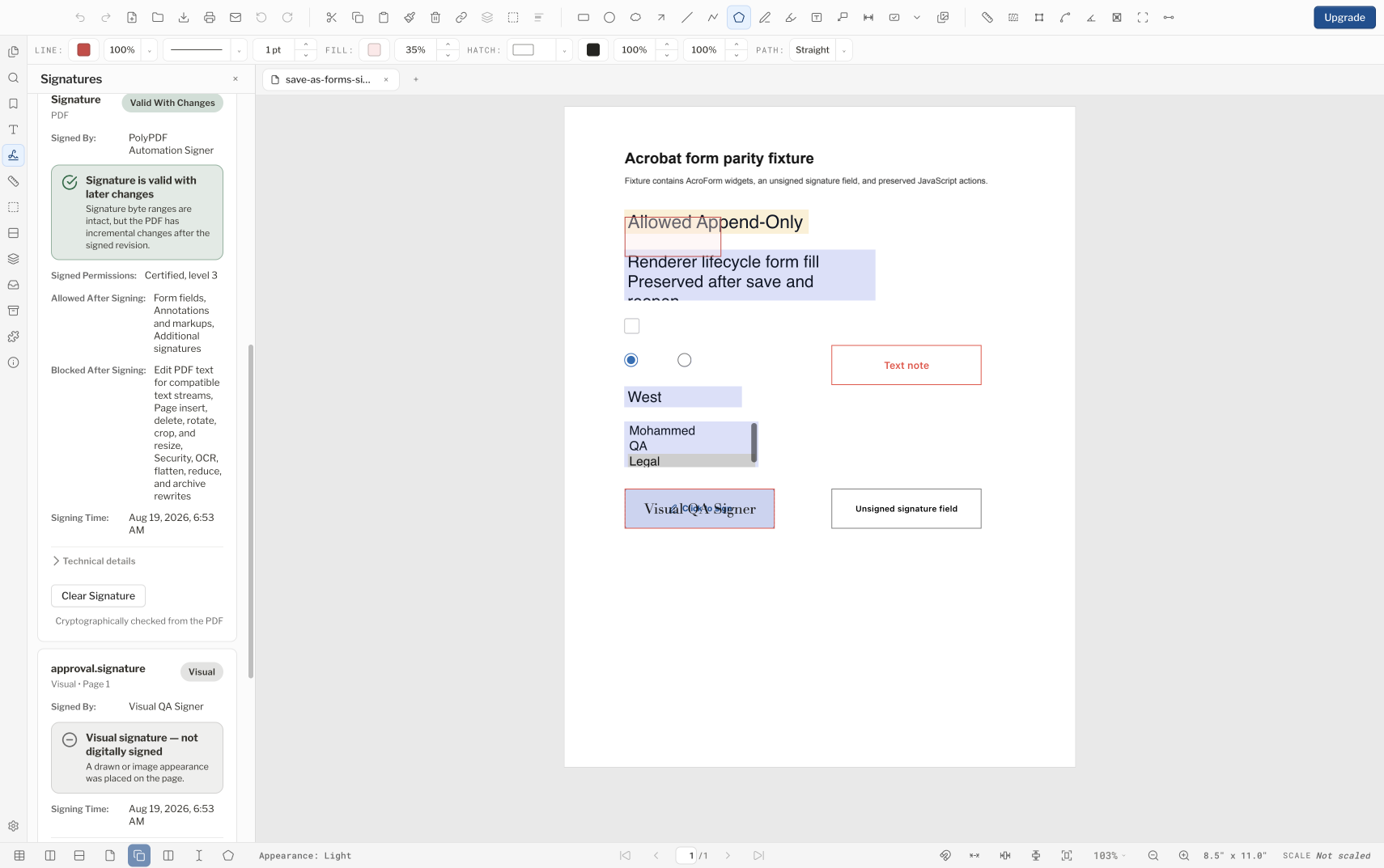
A certificate-backed PDF signature uses a Digital ID and CMS data to sign defined byte ranges, so a recipient can tell whether those bytes changed after signing. A visual signature only draws an appearance on the page. A Professional Seal Maker graphic is artwork: it carries no cryptographic signature, and PolyPDF does not verify license status or board compliance. In the example below, the reopened file reports Valid With Changes because its byte ranges and CMS signature are valid and the later update is permitted by DocMDP level 3.
A signature appearance, a cryptographic signature, and a professional seal can look related on a drawing, but they answer different questions. Confusing them can leave a polished page with no verifiable integrity—or a valid signature attached to an untrusted identity.
- Release review
- Aligned with PolyPDF 1.5.1 (build 23) on . Earlier walkthroughs and screenshots retain their versions below.
- Walkthrough verified
- Tested with
- PolyPDF 1.5.0 (build 22); screenshots from 1.4.0 (build 17)
- Platforms
- macOS and Windows
Saved appearances in 1.5.1
Version 1.5.1 improves signature and stamp appearance preservation when saving and reopening PDFs, including files edited in other PDF applications. Inspect the saved appearance and the signature validation result separately; a visible mark does not establish cryptographic validity.
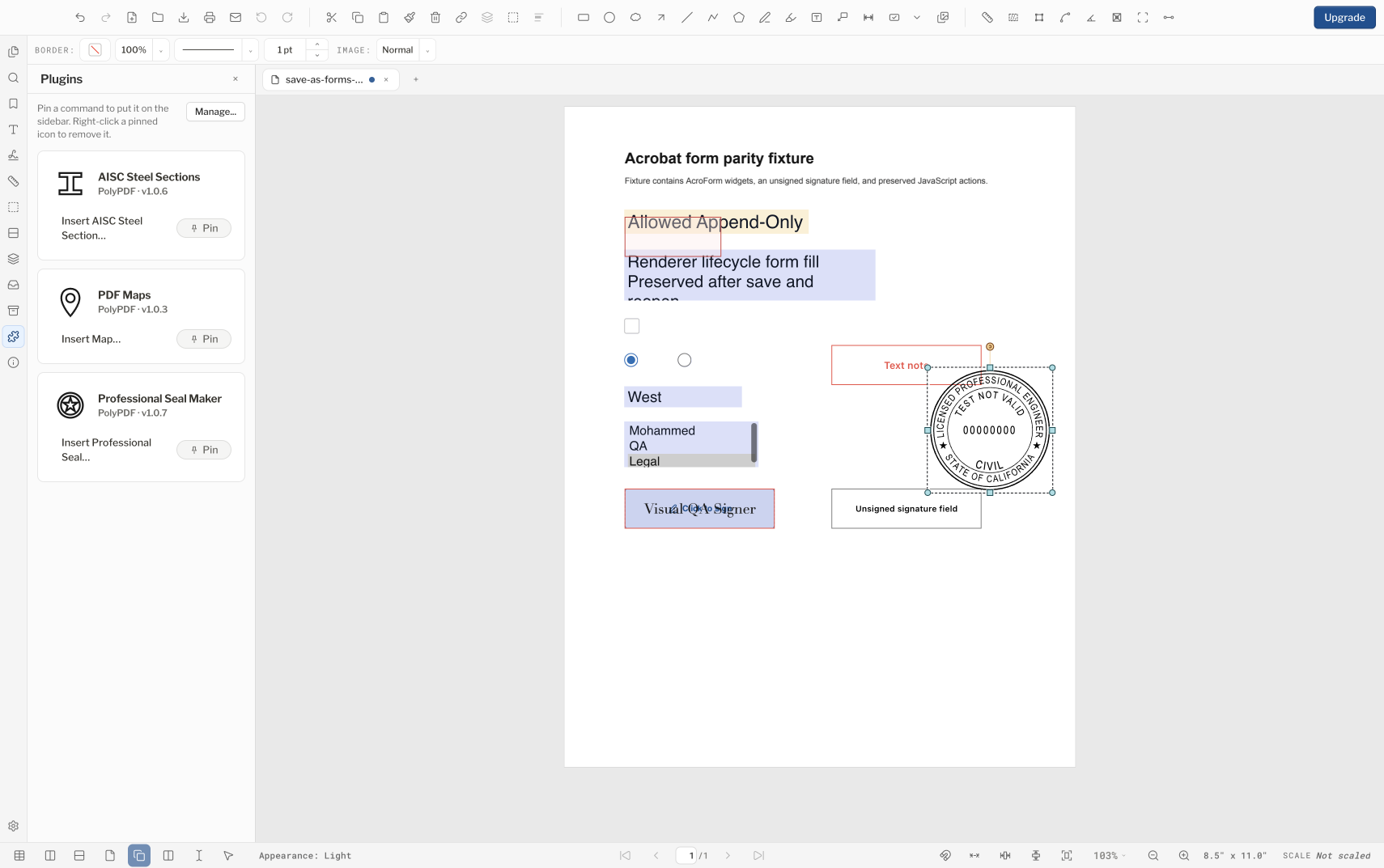
A visual mark placed at an unsigned signature field remains visual artwork. The field can still be reported as unsigned by a verifier. A later certificate signature is a separate action; it must not inherit a false claim of validity from the earlier artwork.
Three marks, three different claims
| Option | What it provides | What it does not prove |
|---|---|---|
| Certificate-backed signature | Cryptographic integrity check over signed PDF byte ranges | Automatic trust in the signer, authority, or legal effect |
| Visual signature | A visible name or drawn/saved signature appearance | Cryptographic integrity or certificate identity |
| Professional seal graphic | Seal artwork built from the profession, jurisdiction, and details you enter | A cryptographic signature, board approval, or permission to seal the document |
Choose based on what the recipient must verify. A visual appearance may satisfy a presentation requirement. To detect whether protected bytes changed, use a certificate-backed signature. When a professional seal is required, review its artwork under the applicable board’s rules, then sign separately if cryptographic integrity is also required.
This guide explains product behavior, not whether a mark satisfies a contract, statute, licensing board, or court. Confirm those requirements with the responsible authority.
Certificate signatures: integrity first, trust second
PolyPDF uses a Digital ID to create a CMS signature over defined PDF byte ranges. A verifier recalculates the digest and compares it with the signed data. If the bytes no longer match, integrity fails. This differs from inspecting a checkmark or signer name drawn on the page.
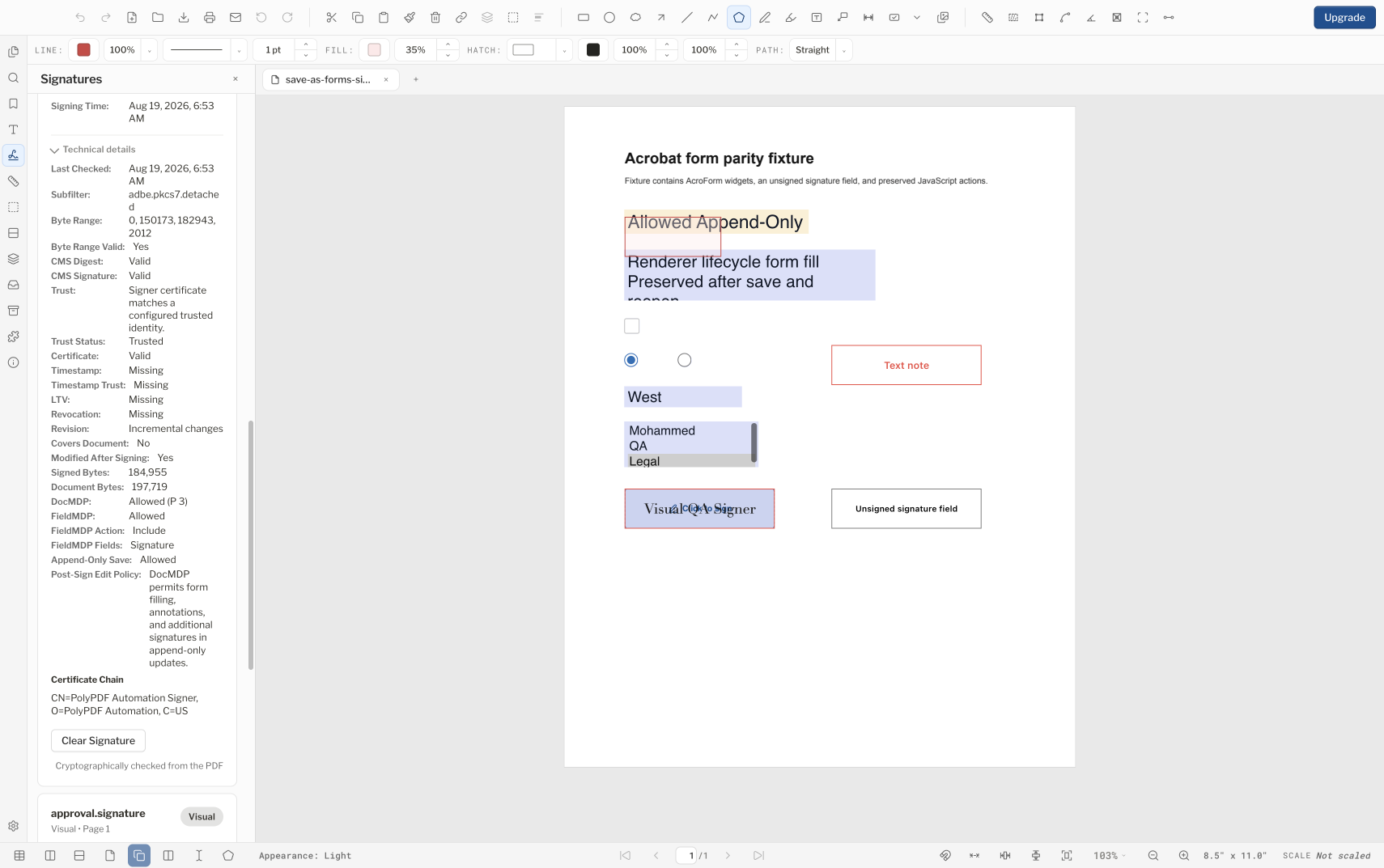
Integrity and trust are separate questions. The identity in this example is self-signed, so it reads as Trusted only on a computer that has been configured to trust it. That is not public certificate-authority trust and not an endorsement of the signer. A recipient’s decision can depend on its own trust anchors, certificate chain, policy, signing authority, signing time, and revocation information.
Visual signatures: useful appearance, no cryptographic proof
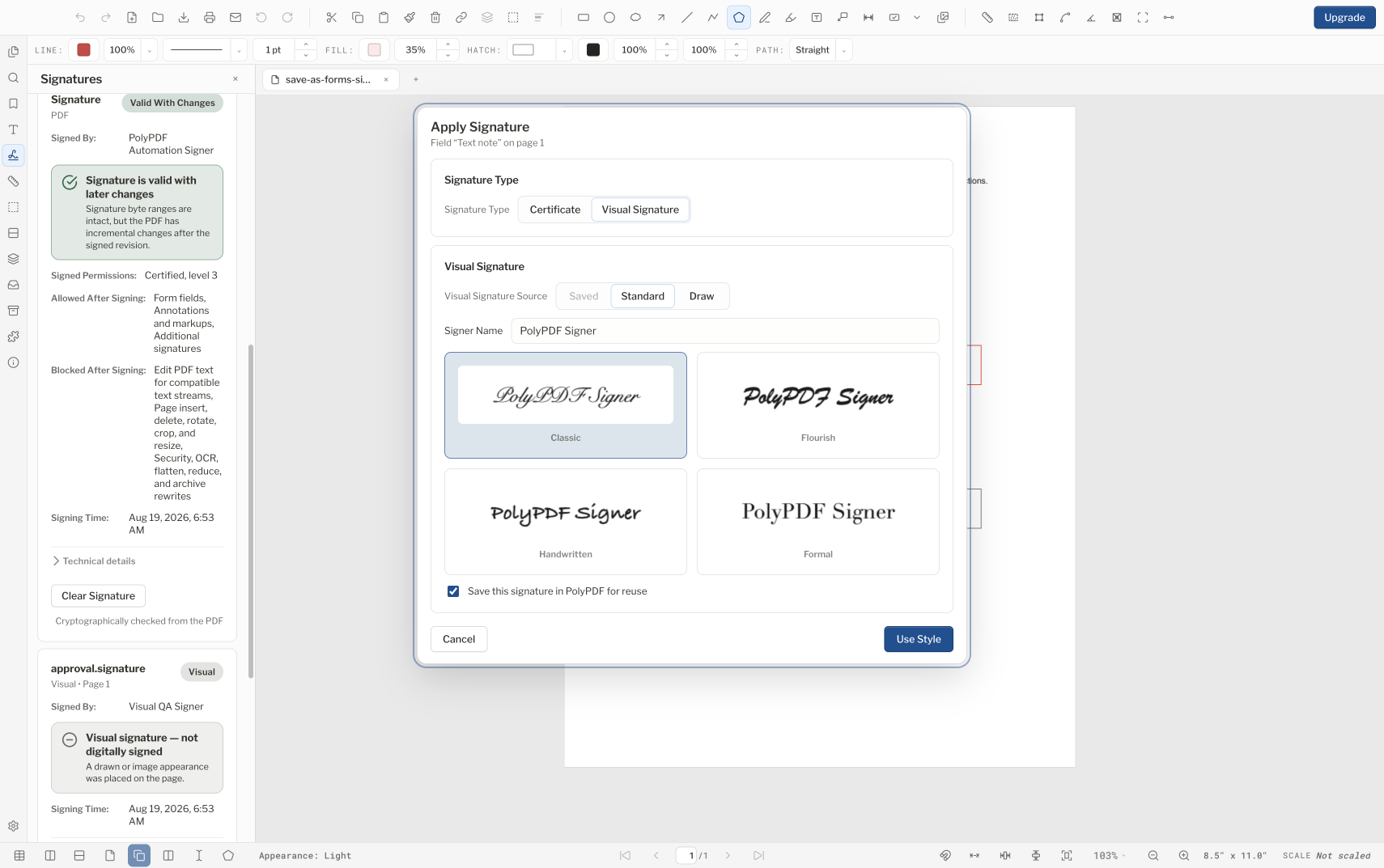
Visual mode can place a saved signature, a standard style, or a drawn mark, and the current release lets you choose its color. The placement is one undoable edit. That may suit an internal approval or a process where another system records identity and consent. It does not create a CMS signature and cannot tell a later viewer whether page bytes changed.
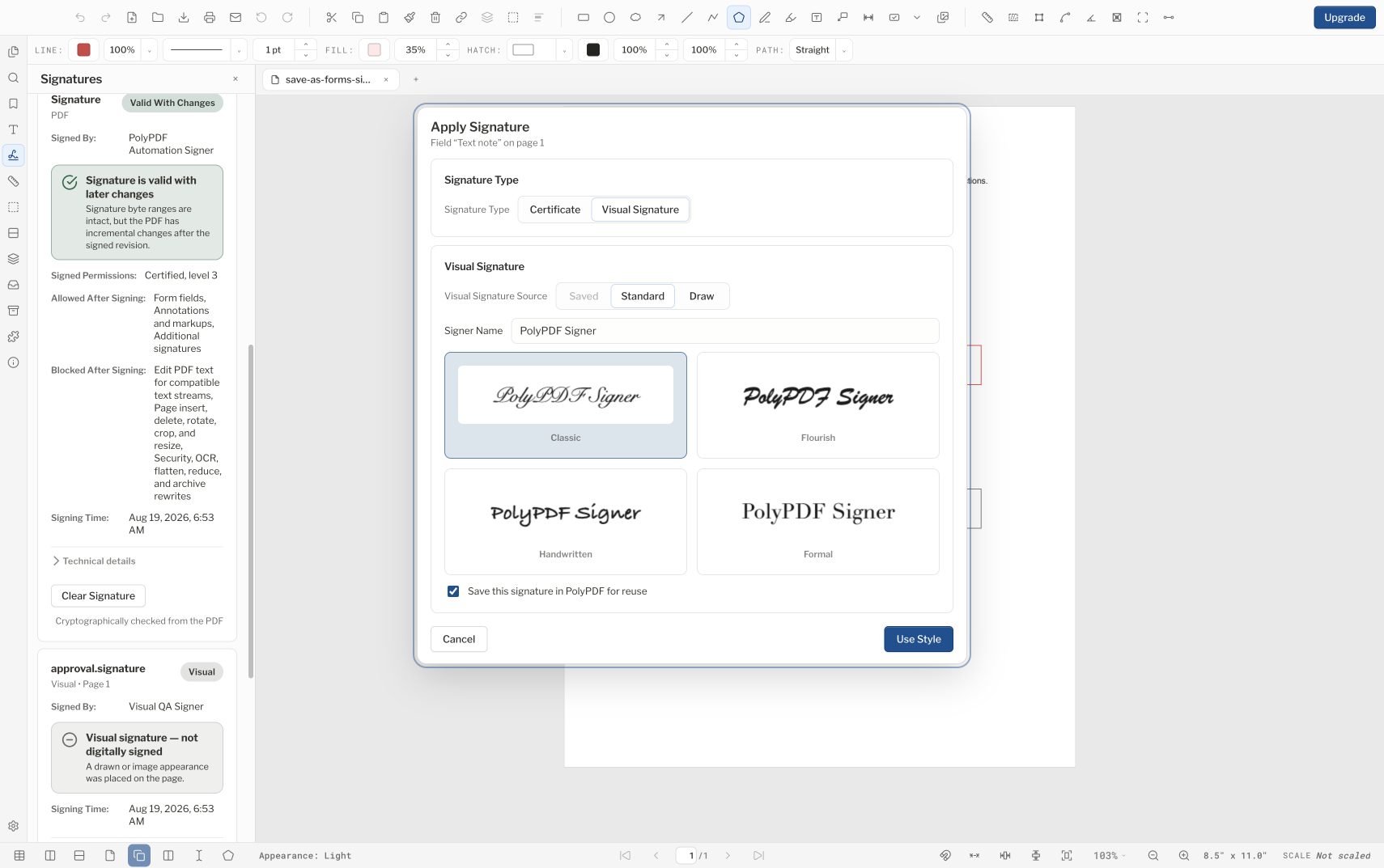
- Do not describe a visual mark as digitally signed merely because it looks like handwriting or includes a date.
- A visual mark records what the page looked like. It does not record who applied it, or whether the bytes changed afterward.
- If integrity matters, pair the final visual layout with a certificate-backed signing step or the organization’s approved signing platform.
- Legal effect depends on context and governing rules; cryptographic capability alone does not decide enforceability.
Professional seals: artwork plus professional responsibility
Professional Seal Maker asks for a profession, jurisdiction, and the fields your seal needs, then places the finished seal on the page as an image-stamp annotation. The seal is graphic artwork: it carries no cryptographic signature, and PolyPDF does not verify license status or board compliance. Deciding that a document may be sealed, and standing behind that decision, remains the licensed professional’s own responsibility.
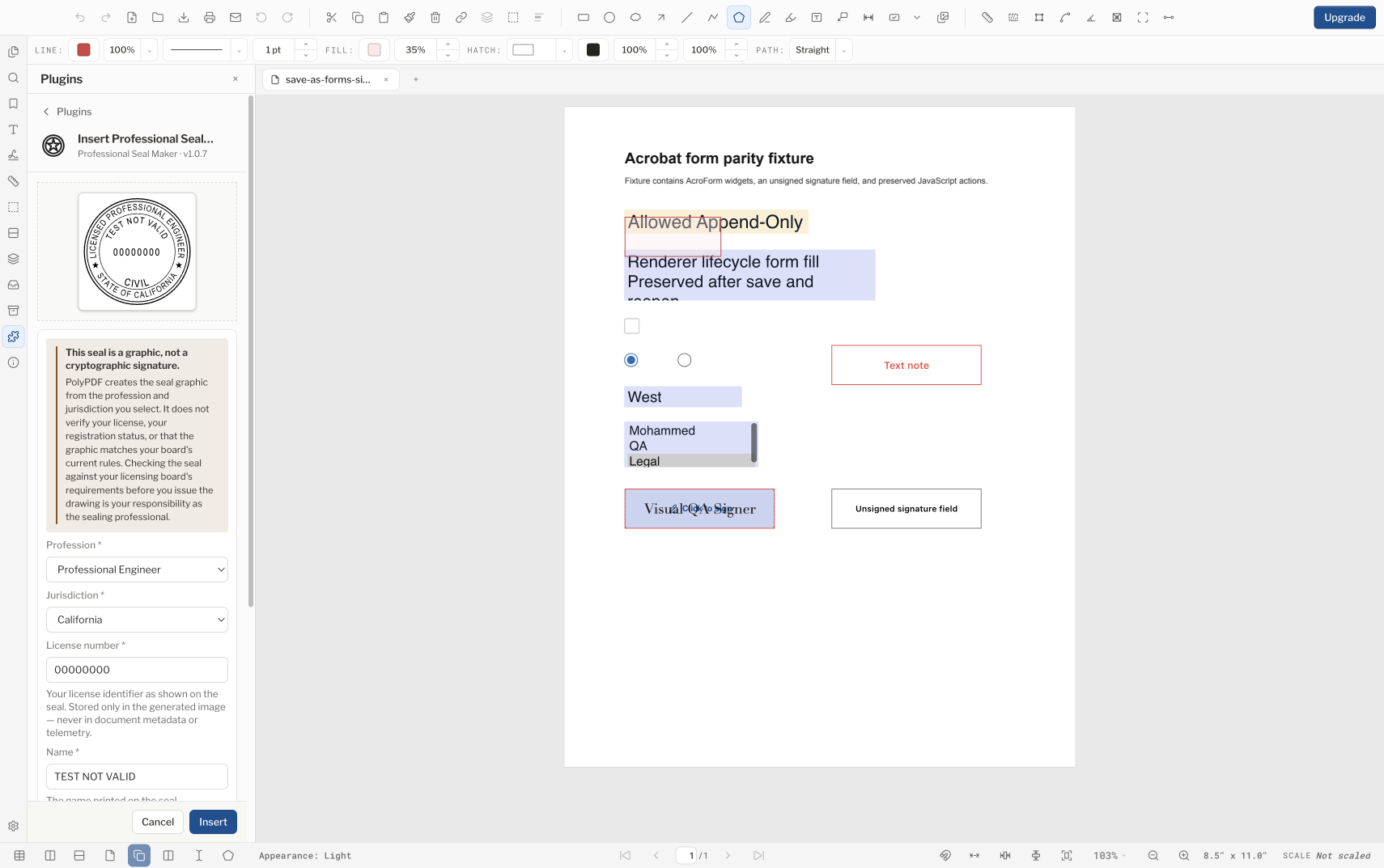
- Compare spelling, license number, profession, jurisdiction, and any dates against the professional’s authoritative records.
- Check current licensing-board rules for appearance, size, wording, electronic sealing, responsible control, and permitted documents.
- Keep the seal editable while drafting, then finish all page-content changes before certificate signing.
- Signing afterwards is a separate step. A certificate signature protects the finished bytes; it does not make the seal itself correct, current, or permitted.
A seal graphic can be visually accurate and still be used improperly. The licensed professional whose identity appears on it is responsible for the decision to apply and issue it.
Worked use case: seal and sign a final drawing issue
- Start with an authorized unsigned working copy and complete revisions, markups, page operations, headers, watermarks, and sanitation first.
- Generate the seal artwork, compare every field and its appearance with the applicable board requirements, and place it on the page.
- Have the responsible professional review the entire final document, not only the seal area.
- Open the Signatures panel, import or select the professional’s approved Digital ID, then use Apply Signature in certificate mode and place the signature appearance.
- Save the signed output under the issue filename, close it, reopen it, and inspect the Signatures panel for the integrity result and certificate details.
- Send the exact saved file without further page-content edits. Ask the recipient to validate it in their own PDF viewer and under their trust policy.
This sequence keeps the roles clear: the seal communicates a professional designation, the professional supports the issue decision, and the certificate signature protects signed byte ranges. None substitutes for another.
Read every validation field literally
Valid With Changes is not the same claim as Valid and unchanged. In the example above, the signed revision’s Byte Range, CMS Digest, and CMS Signature are valid. The document later received an incremental update allowed by its DocMDP level 3 policy, so the panel says Modified After Signing: Yes and Covers Document: No. Those exact fields—not a green icon by itself—define what was checked.
If a future result instead reports an invalid byte range, CMS digest, or CMS signature, the cryptographically checked content did not pass that test. Do not cover the warning or replace the appearance. Return to the authorized source, determine whether the change was expected, complete the new issue, and sign again with the proper identity.
- Finish content editing before signing. Some certified signatures allow limited later actions, but page-content changes may be blocked or invalidate the signature.
- Verify the reopened saved file, not only the document still open after signing.
- Review integrity, certificate trust, revision coverage, permissions, timestamp, LTV, and revocation fields separately; one passing field does not supply what another one is missing.
- A self-signed identity is trusted only where someone has installed it. Recipients evaluate it under their own trust policy.
- Preserve the signed original. Do not use a print-to-PDF or image export as a replacement when verifiable signature data must survive.
Frequently asked questions
Is a visual signature in PolyPDF a digital signature?
No. Visual mode places an appearance on the page but does not create a certificate-backed CMS signature or a cryptographic integrity check.
Does a valid PDF signature prove the signer is trusted?
Not by itself. A valid result shows that the signed byte ranges still match. The self-signed identity in this guide’s example is trusted only on a computer that has been configured to trust it, so a recipient must still apply its own trust anchors, certificate policy, authority checks, and verification context.
Is a PolyPDF professional seal a cryptographic signature?
No. The plugin generates seal artwork as an image stamp. Use a separate Digital ID signing workflow when cryptographic integrity is required.
Can I edit a PDF after applying a certificate signature?
Some certification policies permit limited append-only actions. The example in this guide uses DocMDP level 3 and therefore reports Valid With Changes after an allowed update, but page-content edits can be blocked or invalidate a signature. Finish and verify content before signing whenever possible.
Sources and further reading
- NIST Computer Security Resource Center: Digital Signature glossary
- RFC 5652: Cryptographic Message Syntax
- PolyPDF: Introducing PolyPDF Plugins
- PolyPDF 1.5.0: signatures, color-aware visual signatures, and Professional Seal Maker — The certificate used in this guide’s example is self-signed, and it carries no timestamp, long-term validation, or revocation information.
Try both signature modes on your own drawing
Download PolyPDF for macOS or Windows, compare visual and certificate signing on a spare copy of a drawing, and inspect the reopened certificate details before you commit to an issue workflow.
Free with no trial timer: markup, review, calibration, 3 hand-created measurements per document, and Revision Package viewing. Symbol Search, plugins, and Revision Package changes or publishing require Pro.