How to Prepare an Issued PDF Set
Quick answer
To prepare an issued PDF set, preserve the sources, define a manifest and naming rule, and use a Revision Package when the issue replaces an already reviewed drawing set. For final page content, distinguish navigation labels from visible Bates identifiers, then add headers, footers, watermarks, and Bates numbers to each working document. PolyPDF 1.5.1 does not expose a cross-file Batch Process, so continue a Bates sequence by recording the last number you confirmed and setting the next document’s start value manually. Run Accessibility & Preflight, inspect every output in a recipient-style viewer, and sign only after page-content changes are finished.
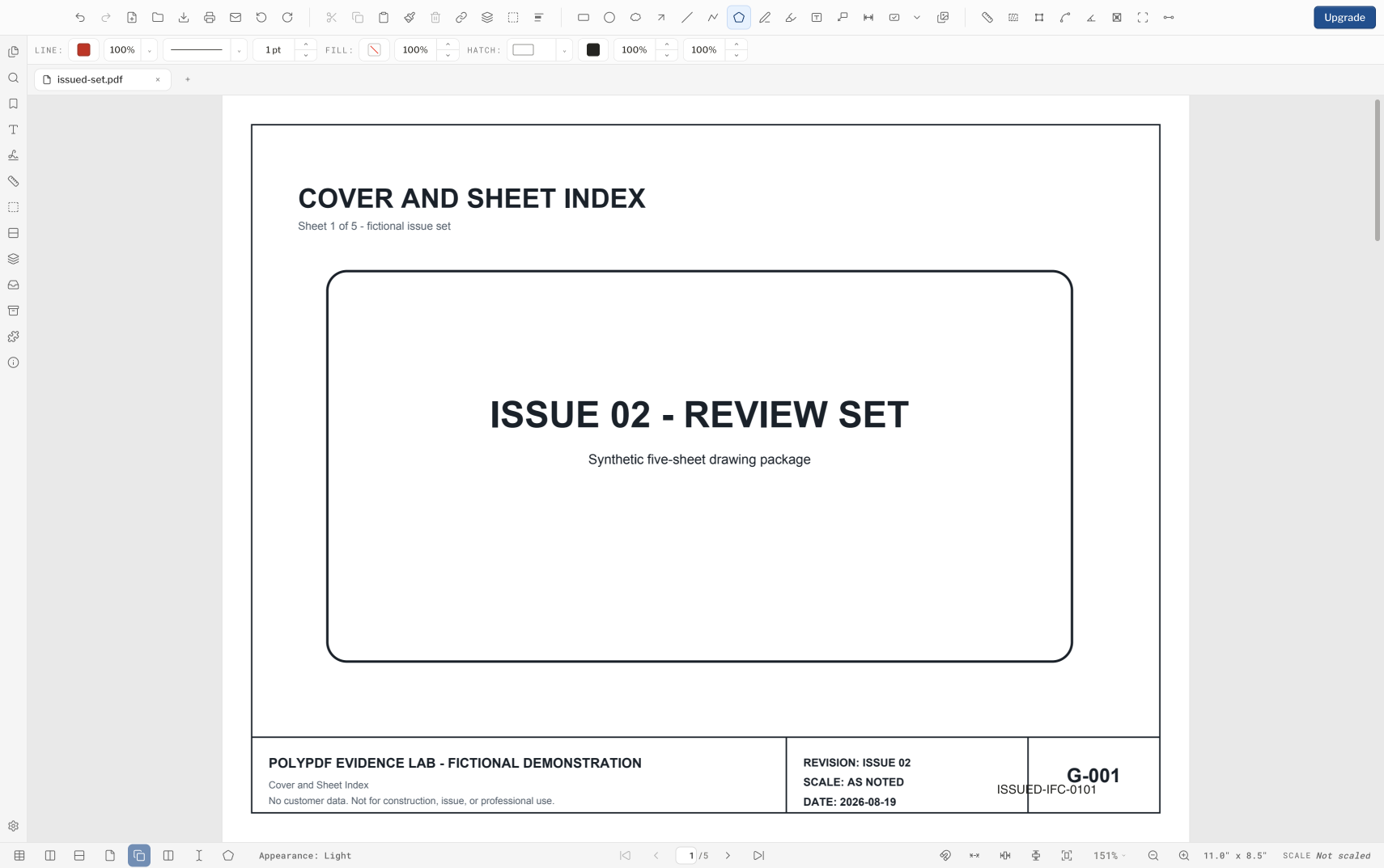
An issued set should tell a recipient what each page is, which issue it belongs to, and whether the file survived production intact. That takes a controlled sequence, not one large button press.
- Release review
- Aligned with PolyPDF 1.5.1 (build 23) on . Earlier walkthroughs and screenshots retain their versions below.
- Walkthrough verified
- Tested with
- PolyPDF 1.5.0 (build 22); screenshots from 1.4.0 (build 17)
- Platforms
- macOS and Windows
Review the visible result in 1.5.1
Version 1.5.1 improves layer visibility, bookmark and thumbnail navigation, and saved stamp and signature appearances. Before issuing, confirm the intended layers are visible, follow important bookmarks, and inspect the reopened output. Use View > Presentation Mode for a focused page review, then press Escape to return.
If you add an interactive review stamp, check its placement values and saved appearance before certificate signing. A visual REVIEWED or APPROVED label is not a certificate signature or an automatic issue decision.
Start with an issue manifest and untouched sources
Before changing a PDF, record the expected files, order, issue status, page counts, and output names. Copy the sources into a working location and reserve a separate output folder. This makes a missing volume or unexpected page-count change visible before distribution.
- Keep source, working, and issued files in distinct folders.
- Decide whether the issue identifier belongs in the filename, a visible header or footer, a Bates sequence, or more than one of those places.
- Record whether bookmarks, links, forms, attachments, layers, or signatures must survive.
- Do not modify an already signed PDF to make a new issue. Obtain an authorized unsigned source or follow the issuer’s re-signing process.
A backup is part of the workflow, not a recovery plan added after something goes wrong. Whole-document operations can affect every selected page.
Use a Revision Package when the issue replaces reviewed drawings
PolyPDF 1.5 adds Revision Packages for the issue-management work that comes before final page stamping. Import the new issue, review recognized sheet identities, decide what replaces or adds, carry approved markups and scale data forward, inspect changes and available quantity or cost impact, verify references, and publish a current package with a revision report.
- Create or open the .polyset Revision Package that owns the reviewed baseline.
- Import the new issue and record its label, date, and whether it is a partial update or full reissue.
- Reconcile every proposed sheet replacement; do not let a revision code make the decision for you.
- Review carried work, alignment, changes, available impact, and references.
- Publish the current package and revision report from the reviewed state.
- If your issue standard also requires Bates numbers, headers, footers, or watermarks, create those as controlled downstream outputs and verify them before signing.
Revision Packages manage sheet identity, history, carryover, changes, impact, references, and publication. They do not replace the per-document controls described below for headers, footers, Bates numbering, watermarks, preflight, or certificate signing.
See the complete five-step workflow: Revision Packages in PolyPDF 1.5
Page labels, printed page numbers, and Bates numbers are not interchangeable
| Identifier | Where it lives | Best use |
|---|---|---|
| PDF page label | Viewer navigation metadata | Names such as A-101 or iv in the page control |
| Header or footer page number | Visible page content | Human-readable numbering on printed and viewed pages |
| Bates number | Visible sequential identifier | A controlled cross-file sequence for issue or discovery tracking |
A page label can help a viewer navigate to A-101 without changing the printed sheet. PolyPDF’s Headers & Footers fields support {page} for the physical page position and {label} for the existing page label. A Bates identifier is a separate visible sequence with a prefix, start number, digit count, suffix, placement, and styling.
Choose one authoritative scheme for each purpose. Printing a page label in the footer can be useful, but it does not turn that label into a cross-volume Bates sequence. Conversely, Bates numbering does not repair incorrect drawing-sheet labels or bookmarks.
Set headers and footers before other page-content operations
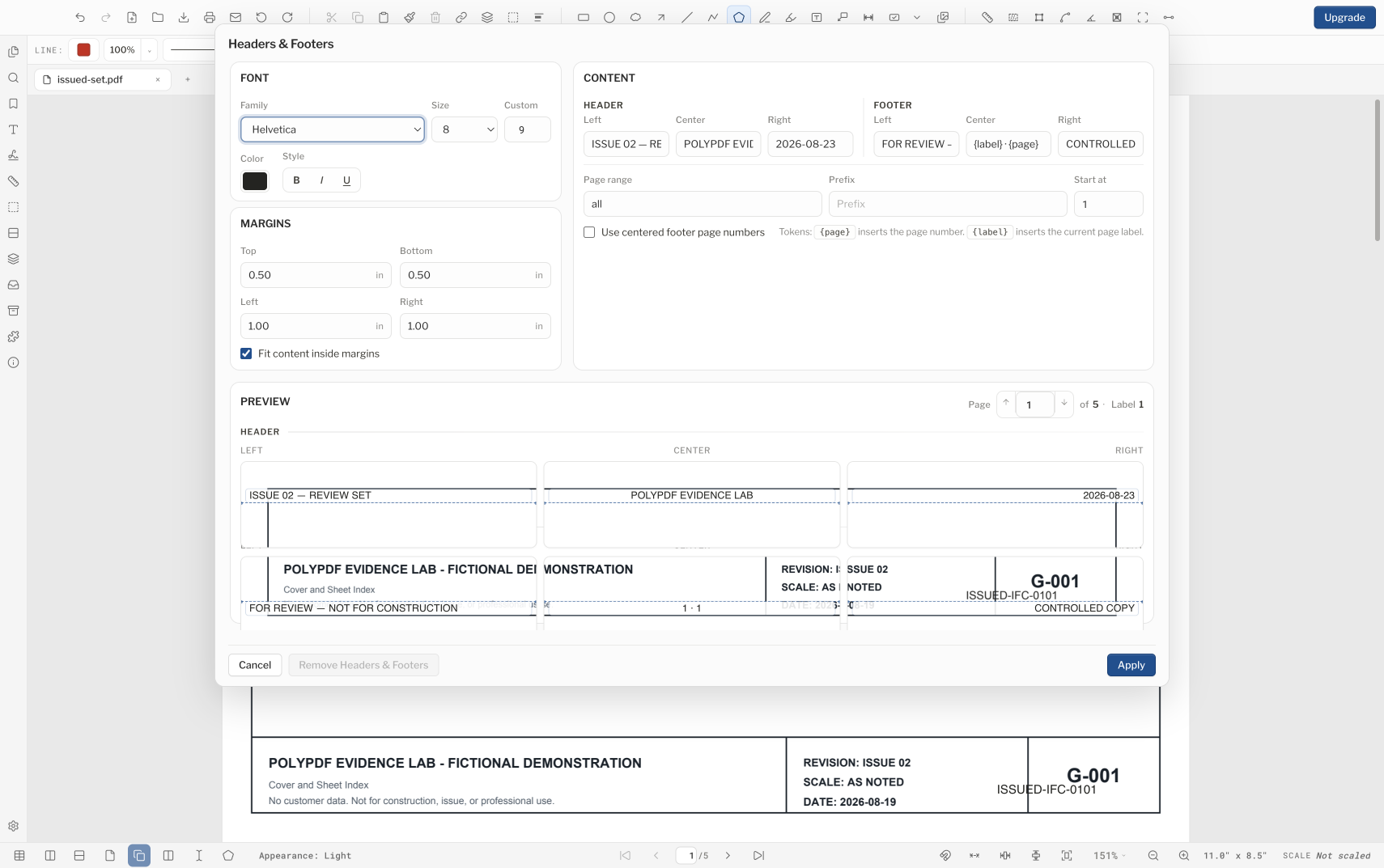
Open Document › Headers & Footers for each file that needs issue text. The dialog provides six positions, a page range, font and margin controls, and a preview. Use {page} or {label} exactly as documented; there is no {total} token, and an unsupported token prints literally.
- Use the page stepper in the preview to inspect sheets with different sizes, rotations, or title-block positions.
- Keep issue text outside drawing and title-block content, and check the chosen margins on the smallest page.
- Apply headers and footers before certificate signing because they change page content.
- If the result is wrong, use the dialog’s Remove Headers & Footers action on the working copy rather than covering the text with another object.
Apply Bates numbers and watermarks document by document
The current PolyPDF release does not expose a cross-file Batch Process, so plan this final page-content work one file at a time. Apply Bates numbering and any text watermark to a single working document, save a new output, check it, and only then calculate the starting number for the next file.
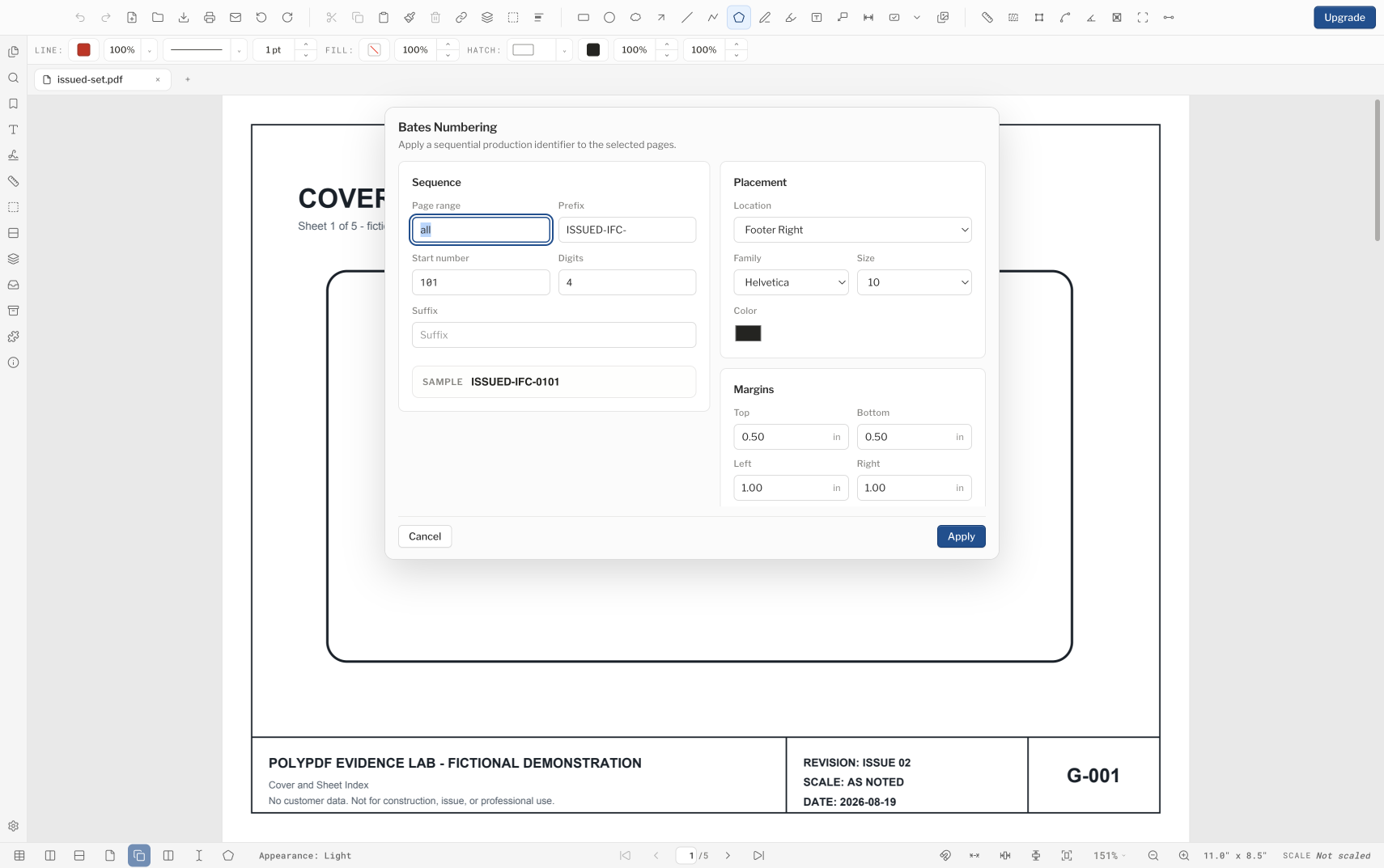
- Open the first working PDF in manifest order and confirm its page count and intended page range.
- Open Bates Numbering and set the prefix, starting number, digit count, suffix, placement, page range, and styling required by the issue rule.
- Apply the number, save to the clean output folder under the manifest name, close it, and reopen the saved copy.
- Check the first and last Bates value. Record the last number you saw rather than relying only on the expected page count.
- Open the next working document and use the recorded last value plus one as its start. Repeat until every volume is accounted for.
- When a text watermark is required, apply it per document using the placement, opacity, rotation, font-size, color, and layer controls. Watermarks are text only; there is no logo-image watermark.
- Compare the completed output folder against the manifest before preflight and signing.
expected next number = starting number + successfully numbered pages
PolyPDF 1.5.1 does not expose a user-facing cross-file Batch Process. Revision Packages coordinate drawing issues, but they do not batch-apply Bates numbers or watermarks across unrelated PDFs. If you need unattended multi-file page production, use an organization-approved external workflow.
Preflight and verify in the order a recipient will encounter the set
Run Document › Accessibility & Preflight on each final candidate. PolyPDF reports 10 automated checks across five groups. Preflight is a screening tool, not PDF/UA certification and not a substitute for visual and contractual review.
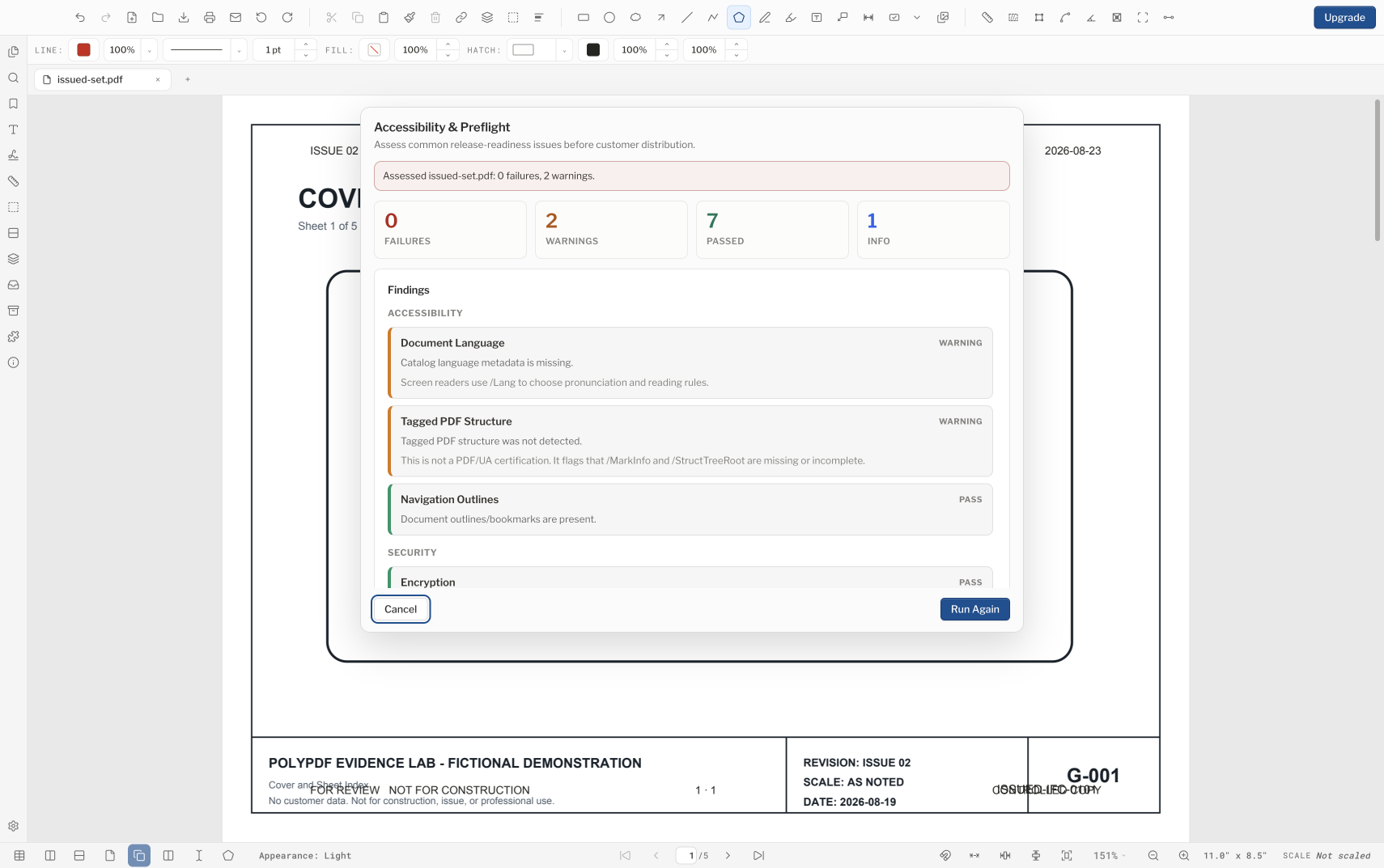
- Open every output from the clean issue folder and confirm filename, page count, first page, and last page.
- Spot-check page labels, bookmarks, links, rotation, layers, forms, and attachments that should remain.
- Check the first and last Bates number in every file and the transition between files.
- Inspect headers, footers, and watermarks on portrait, landscape, and rotated sheets.
- Search for the issue identifier and print or export representative pages.
- Open the exact release files in a second viewer that resembles the recipient’s environment.
- Apply any required certificate signature only after these page-content checks, then verify the signed file without modifying it.
Worked use case: three-volume review issue
Consider an illustrative three-volume set containing 28, 31, and 15 pages. The issue manifest calls for “REVIEW” in the header, a centered text watermark, and Bates identifiers beginning at REV-000101. First, add and verify the header on each working file. Number the first volume REV-000101 through REV-000128, set the second to start at REV-000129, and set the third to start at REV-000160. Apply and inspect the watermark on each document separately.
If all 74 pages are numbered, the next unused value should be REV-000175. Arithmetic is not a substitute for looking: check the first and last value in each volume and the boundary between volumes. Run preflight, confirm the appearance in a recipient-style viewer, then sign if the issue procedure requires it.
Frequently asked questions
What is the difference between a PDF page label and a Bates number?
A page label is navigation metadata a viewer can display, such as A-101. A Bates number is a visible sequential identifier applied for controlled tracking. One does not automatically replace the other.
Can PolyPDF 1.5 apply Bates numbers and watermarks to a whole folder at once?
No user-facing cross-file Batch Process is exposed in build 23. Apply headers, footers, Bates numbers, and watermarks to each document, save separate outputs, and verify the sequence against the manifest. Revision Packages are for reconciling and publishing drawing issues, not folder-wide page stamping.
How do I continue Bates numbering across several PDF files?
Verify the last number in the reopened output for one file, add one, and enter that value as the next file’s starting number. Record every boundary in the issue manifest.
Should I add a digital signature before or after numbering and watermarks?
After. Headers, footers, Bates numbers, and watermarks change page content and may be blocked by or invalidate a signature. Finish and verify page-content operations before signing.
Sources and further reading
- Library of Congress: PDF 2.0, ISO 32000-2
- PolyPDF 1.5 document-production and Revision Package behavior — Headers, footers, Bates numbering, text watermarks, and the 10-check Accessibility & Preflight screen remain per-document operations. Revision Packages add issue reconciliation, carryover, change and impact review, reference review, and controlled publication. A cross-file Batch Process is not exposed.
Practice the issue sequence before the deadline
Download PolyPDF for macOS or Windows and run a representative copy through per-document headers, numbering, watermarks, preflight, and recipient-viewer checks before producing the live issue.
Free with no trial timer: markup, review, calibration, 3 hand-created measurements per document, and Revision Package viewing. Symbol Search, plugins, and Revision Package changes or publishing require Pro.