Visual Search auto-count
Find one drawing symbol, then count matching instances across the PDF.
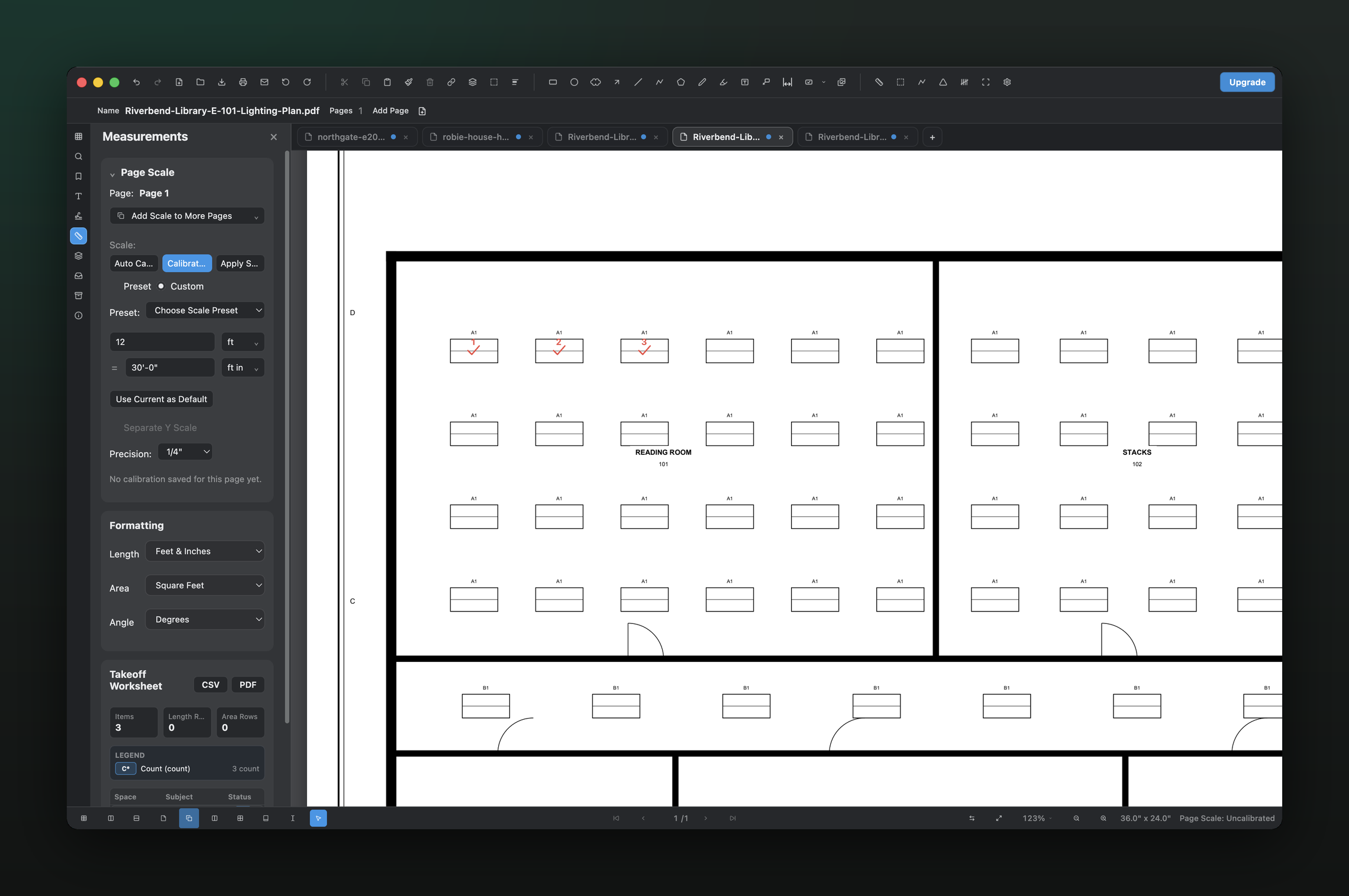
Capture a symbol from the sheet, let PolyPDF find visual matches, review the results, and commit the accepted set as a count series.
Visual Search auto-count is uncapped in both PolyPDF Free and Pro, so you can test it on a real symbol-heavy drawing before buying anything.
01 / WHY
Auto-count is fastest when the human stays in control.
Drawing symbols vary with scan quality, line weight, rotation, and nearby geometry. PolyPDF treats Visual Search as a reviewable workflow: you choose the example, inspect the candidate matches, and commit the results you are prepared to use.
02 / WORKFLOW
From source PDF to a result you can review.
- 01
Select a clean example
Draw a capture box tightly around one representative symbol and avoid unrelated labels or lines when possible.
- 02
Run Visual Search
PolyPDF scans the PDF for visually similar regions and returns candidate matches without requiring OCR text or a CAD model.
- 03
Review the candidates
Inspect the highlighted results and adjust the selection or search threshold when the drawing contains similar-looking symbols.
- 04
Commit the count series
Turn the accepted matches into numbered count annotations that feed the takeoff worksheet and remain visible on the page.
03 / WATCH
Watch Visual Search become a reviewed count series.
See the capture, candidate review, and committed count workflow in the current PolyPDF interface.
Both versions use current PolyPDF product captures. Captions are available in the player.
04 / FIT
A repeatable count with visible evidence on the drawing.
- Works from visual symbol appearance rather than relying on searchable text.
- Keeps the user responsible for reviewing candidate matches before commitment.
- Creates numbered count markers that can be audited against the sheet.
- Feeds accepted counts into the same worksheet as lengths and areas.
- Remains uncapped in the free app as well as Pro.
Try the full workflow free. Pay only to remove the hand-created measurement cap.
Use PolyPDF 1.x forever on up to 3 Mac or Windows computers. Every PolyPDF 1.x update is included. Future major versions may be optional paid upgrades.
Founder pricing is available until September 10, 2026 at 11:59 p.m. ET or after 100 fulfilled licenses, whichever comes first.
05 / FAQ
Questions before you test it.
Is Visual Search the same as OCR?
No. OCR looks for text. Visual Search looks for regions that resemble the symbol example you capture from the drawing.
Will it find every symbol perfectly?
Not on every drawing. Match quality depends on the source PDF, symbol consistency, rotation, scan quality, and the capture selection. Review the candidates before committing a count.
Is Visual Search limited in the free version?
No. Visual Search auto-count is uncapped in both Free and Pro. The Pro upgrade removes the separate limit on hand-created measurements.